WeCom adding WorkBuddy solves the problem of getting work done without leaving the group chat; Magpie in the menu bar solves the problem of switching models without editing every app’s config. The scenes are different, but the point is the same: less time fighting tools.
01
What problem does WorkBuddy in WeCom actually solve?
When you handle work in WeCom every day, the most annoying things are usually these:
First,digging through message history. You may be in several project and client groups at once. Step away for lunch or a meeting, and you come back to a screen full of red dots. Hundreds of messages rush past: some small talk, some requirements. It is hard to tell at a glance who needs you and what your boss assigned;
Second,checking file versions. Documents are scattered across groups and WeDrive. The same proposal has gone through several versions, and to find what changed in the latest one you often have to ask colleagues one by one;
Third,dealing with routine paperwork. Writing meeting notes after a call or a weekly report on Friday is mostly retyping discussions and schedules that already exist.
These are exactly the places where WorkBuddy inside WeCom is most useful.

In a group chat, you can select dozens of discussion messages and forward them to it: “Summarize the conclusions and list the tasks assigned to me as 1, 2, 3.” In seconds, the thread becomes clear. Ask it to read a long contract in WeDrive and pull out the key clauses, and you do not have to download the file and upload it somewhere else. It takes over the tedious daily operations that still have to be done.
Figure 1: WorkBuddy’s native workflow inside a WeChat group
02
One less app switch matters more than another feature
Over the past year, many AI tools have claimed to improve efficiency, but a lot of people never really use them because the steps are too cumbersome.
You have to open the browser, find the bookmark, log in, copy the chat text over, download the file, upload it again, wait for an answer, then copy it back into WeChat. When people are even a little busy, nobody wants to bounce back and forth like that.
The value of WorkBuddy is not that it is mysterious. It is that youdo not have to switch windows.
It lives in the group chat, reads WeDrive directly, and can look at Tencent Docs. Even colleagues who know nothing about tech can treat it as an assistant on call and immediately save a little time.

03
Once you run many tools, the worst part is each one keeping its own settings
If WorkBuddy in WeCom solves the daily office problem of not switching windows, people who write code and run automation scripts face another problem: every tool binds models too tightly.
Anyone who uses AI a bit more tends to have more than one tool on the computer: Cursor for code, Claude Code in the terminal, and maybe other tools running too.
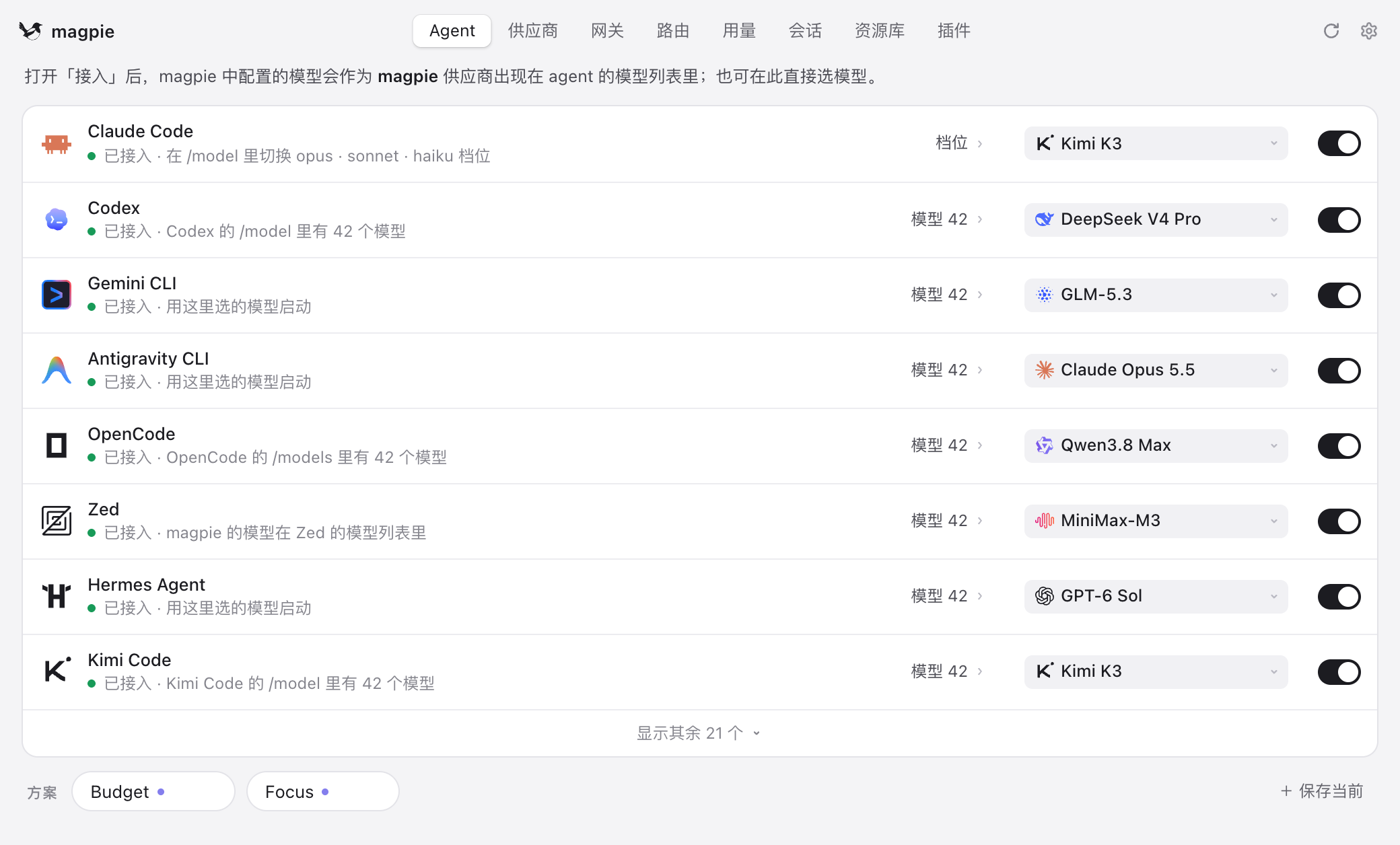
Two things are especially annoying here:
The first isscattered settings. Every tool manages its own world: Cursor has its own settings, Claude Code only accepts the official format in a deeply hidden file, and other tools have their own rules. When a useful new model appears and you want to try it across tools, you have to open several apps, dig out hidden config files, change URLs, and paste keys. Miss one punctuation mark and the app can fail to open.
The second isquota interruptions. You finally get a tool to run a long task, then halfway through it suddenly says the quota is exceeded, often with a 429 error, and forces you to wait for hours. The code you were changing just stops there.
04
Magpie removes the hassle of editing config every time you switch models
The open-source tool Magpie(GitHub: yetone/magpie) solves exactly this problem.
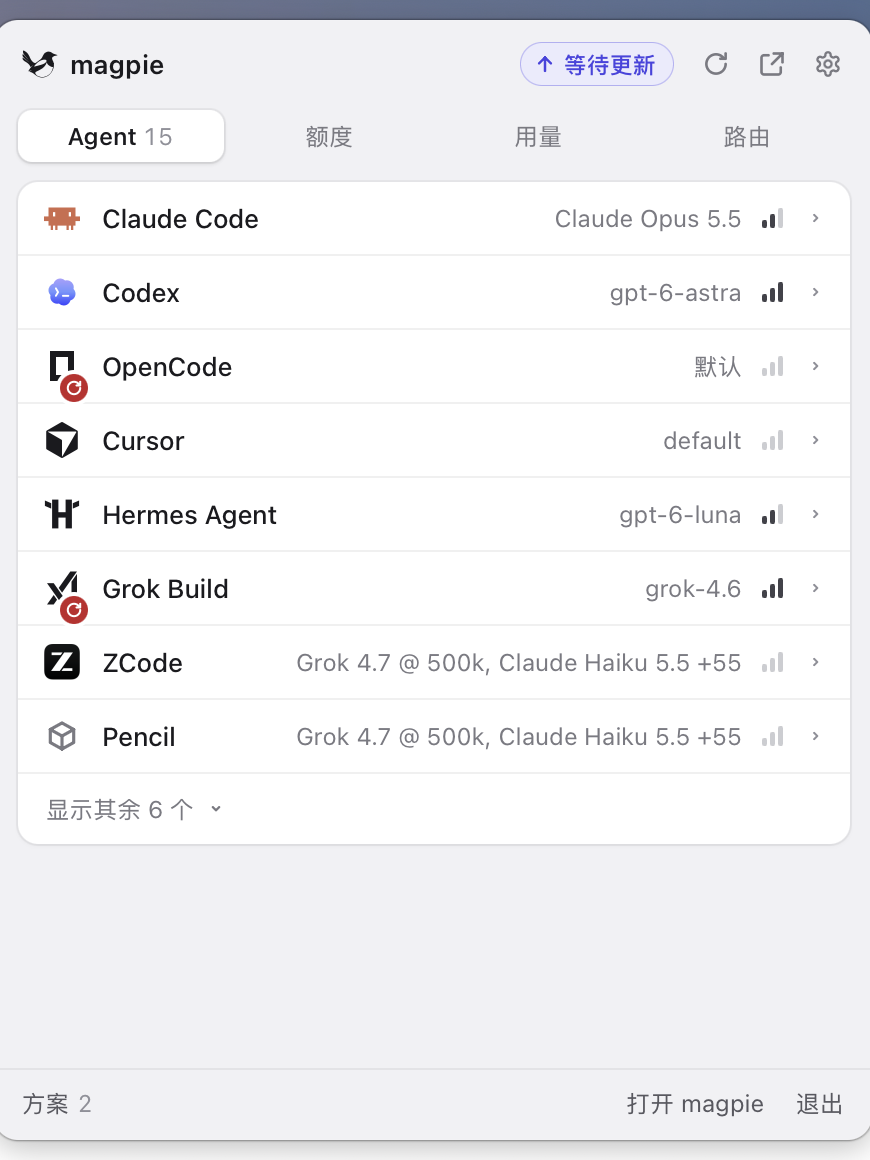
Figure 2: Magpie’s real panel in the Mac menu bar. A dozen-plus tools are gathered in one place, and models can be dialed freely at any time.
It lives in the upper-right corner of the Mac menu bar, with a small magpie as the icon.
Open it and you see the interface in Figure 2. What it mainly does is simple:
First,manage all models in one place. Whether it is an official subscription or a domestic model you have paid a little for, you enter it once in Magpie and every tool can share it. No more digging through each app’s settings.
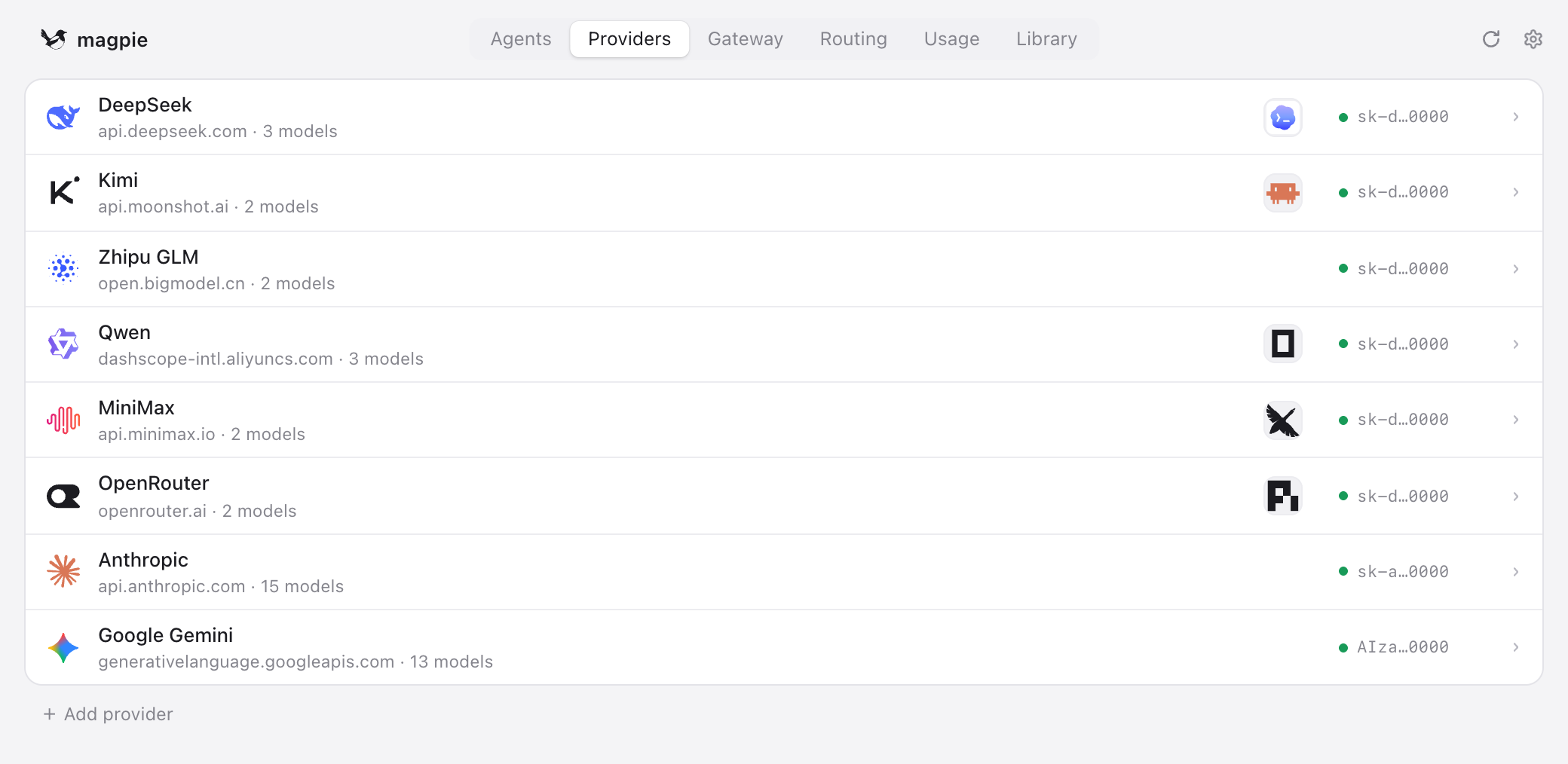
Second,one-click switching from the menu bar. The list shows the dozen-plus tools on your computer, each with a dropdown beside it. Pick which model you want any tool to use, click once, and it takes effect immediately. No config file editing.
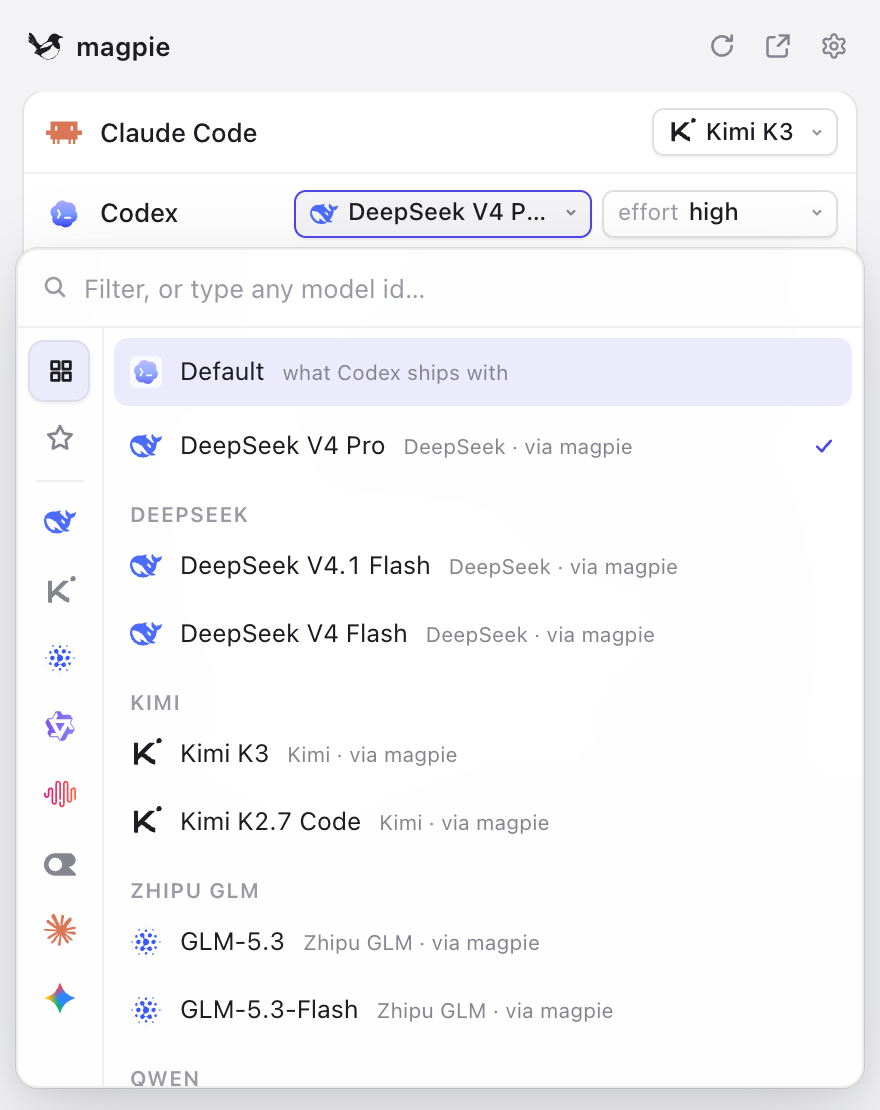
Third,automatic fallback switching. You can configure a backup model. Once the main model hits a quota or network timeout, it quietly switches to the backup in the background and keeps the task running instead of freezing with an error.
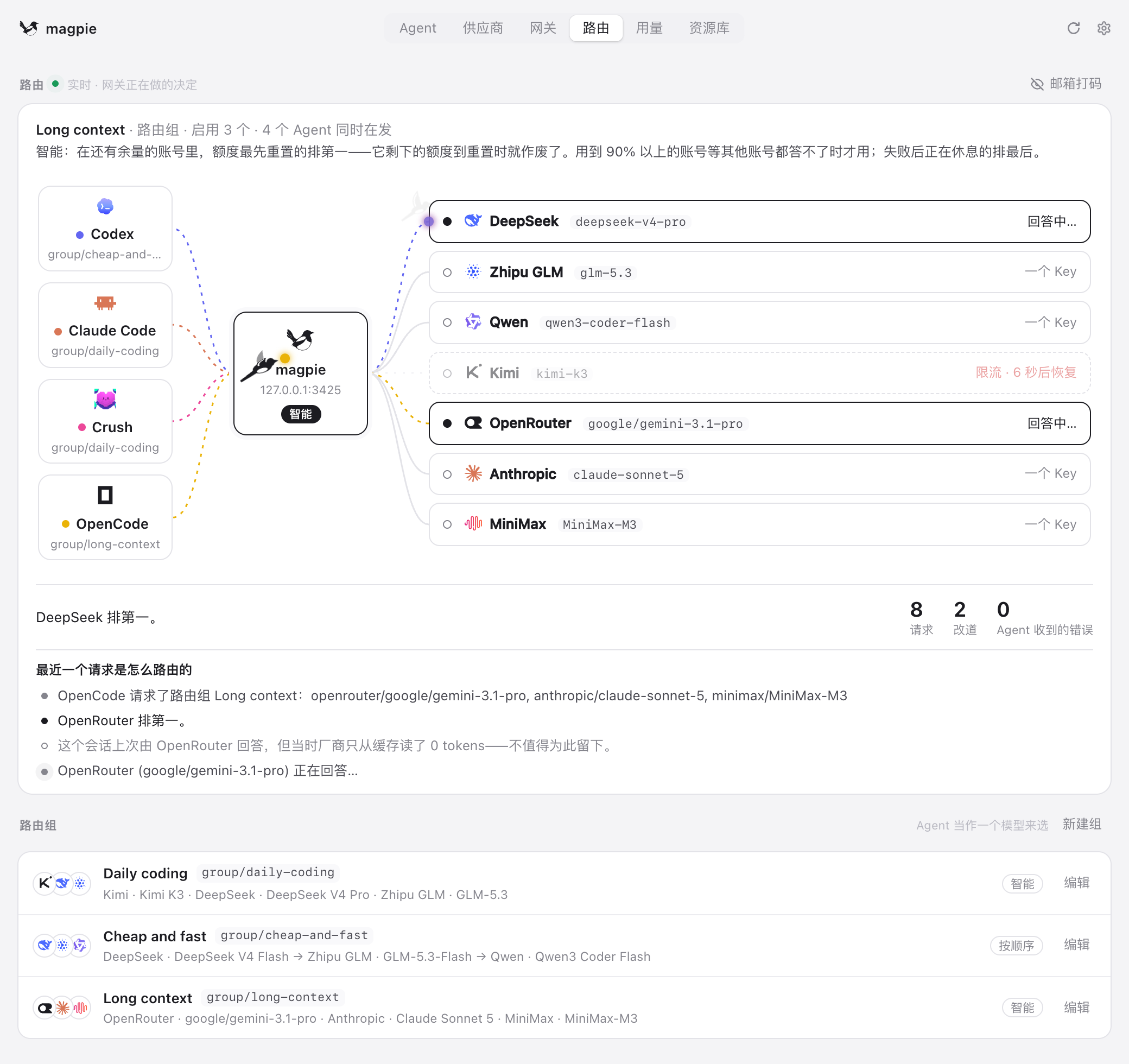
Figure 3: Magpie’s unified model management and automatic failover mechanism
In real work, this feels practical: when writing small scripts or changing styles, switch to a cheaper model; when doing complex architecture reasoning, click once and move to a smarter model. You do not have to edit system files. The choice of model comes back to you.
05
Where are its limits, and who actually needs it?
Objectively, Magpie also has clear limits. Many people do not need it at all.
If you mostly look things up in a web page, or your company’s WeCom tools already cover your work, you do not need to install it. It is aimed at local multi-tool management. For light users, it is just another background app.
Its practical limits are also obvious:
First,it depends entirely on the computer staying on. If the computer sleeps or the program quits, the connected tools behind it disconnect. People who work only from a phone cannot use it;
Second,it cannot change the model’s own ability. If the model’s reasoning is flawed, switching to it will still produce flawed work;
Third,you need your own API keys. If you have never dealt with getting model keys, the first step can still block you.
Who actually needs it?
First, people who keep two or more AI coding or automation tools open year-round, such as Cursor plus Claude Code;
Second, people who have models from different vendors, switch among them often, and are tired of digging through hidden config files or getting blocked by quotas mid-task.
If both describe you, download it, install it, enter one key, and switch your main tool over for one task. Once you have experienced switching models from a menu, you will know whether it fits.
Tools do not have to be chased just because they are new. Whether WeCom brings the entry point into group chats to save office workers time, or Magpie makes model switching light enough to reduce friction for technical users, the essence is the same: remove the tedious steps and leave your energy for the real work.
Enzo · 10.14