
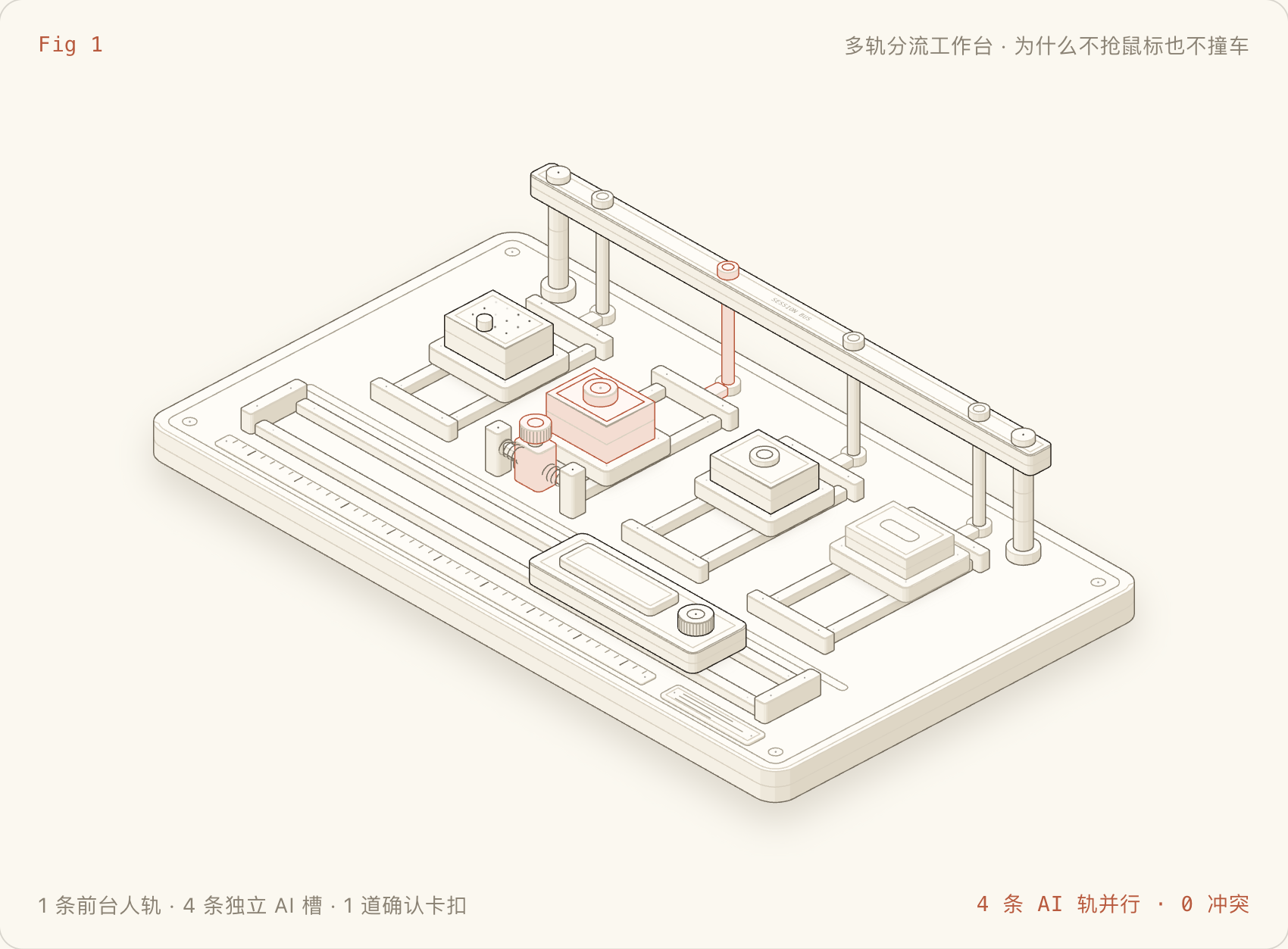
A few days ago I uninstalled Ego lite after nearly four months and switched to Kaze. Ego lite isn’t broken, I just push web automation hard enough to expose its cracks: local crash logs showed 10 crashes in three-plus months (four within 17 minutes once), and multiple AI sessions frequently locked each other out. Kaze has its quirks too, yet one thing kept me on it: running a dozen AI sessions at once without freezing or hijacking my cursor.
01 Four Everyday Workflows That Actually Save Time
“AI browser” sounds abstract until you pin it down to one class of chores: anything that needs your logged-in account and forces you to click through pages over and over.
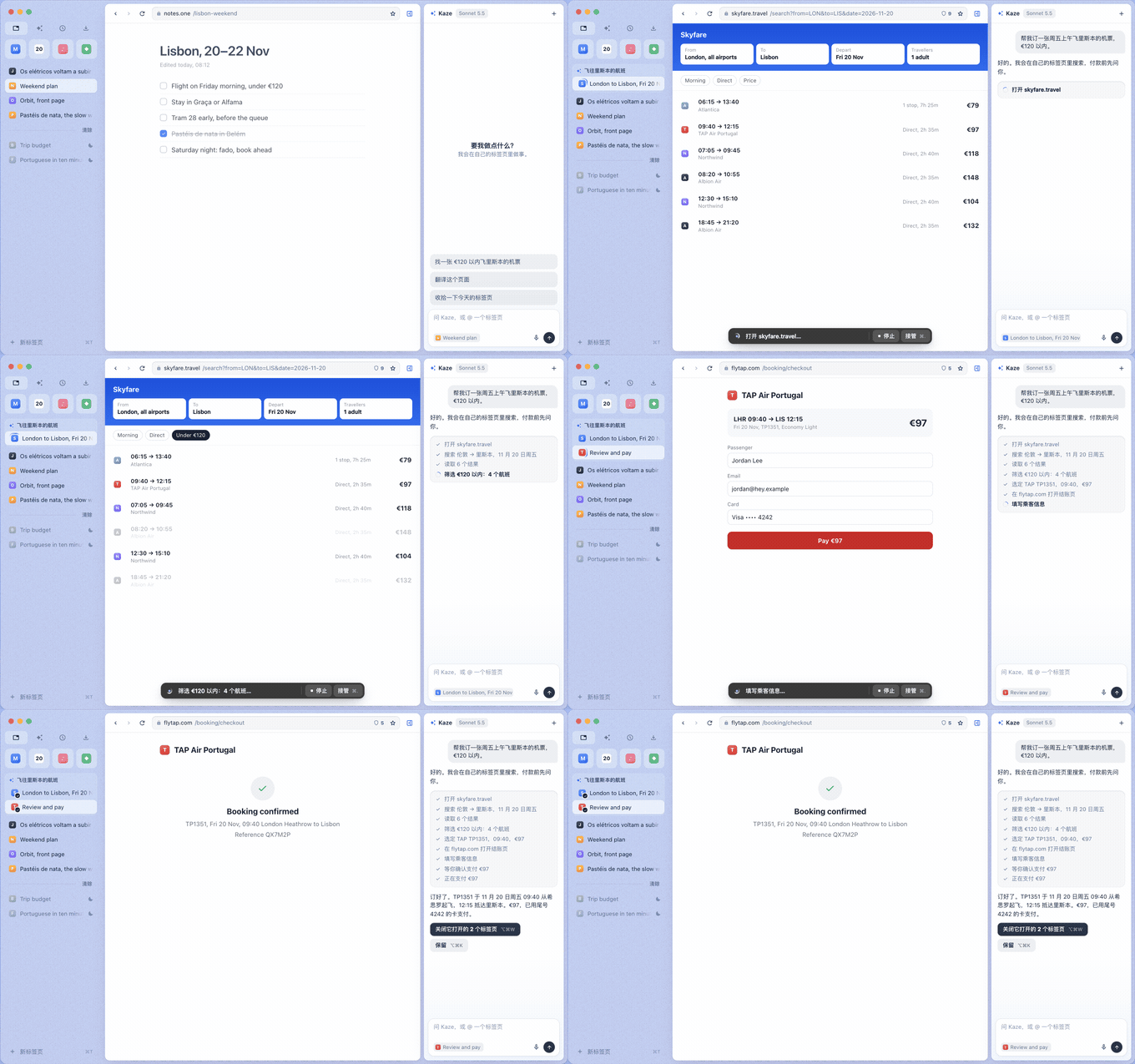
Workflow 01 — Compare Flights or Prices and Fill Forms, Stopping Before You Pay
- Give one prompt: Press
⌘Eand type a single request — like finding a Friday flight from London to Lisbon under €120, or comparing a pair of headphones across major stores after coupons and shipping. - Runs in its own background group: Kaze opens a separate tab group to search, filter, and fill checkout details while you keep reading uninterrupted.
- Asks before committing: Before any payment, send, or delete action, a confirmation card pops up and waits for your explicit approval.
Workflow 02 — Export Purchase Histories and Run Pre-Post Checks Using Your Existing Logins
Order history scattered across shopping platforms is miserable to paginate by hand, and catching risky phrasing before publishing a social post saves hours of guesswork.
- No repeated QR logins: Because your accounts are already signed in inside the browser, the agent picks up right where you left off.
- One-click built-in skills: Kaze’s built-in Skills market ships ready-made templates for exporting full Alipay, JD, and Taobao order tables and running Xiaohongshu pre-post compliance checks.
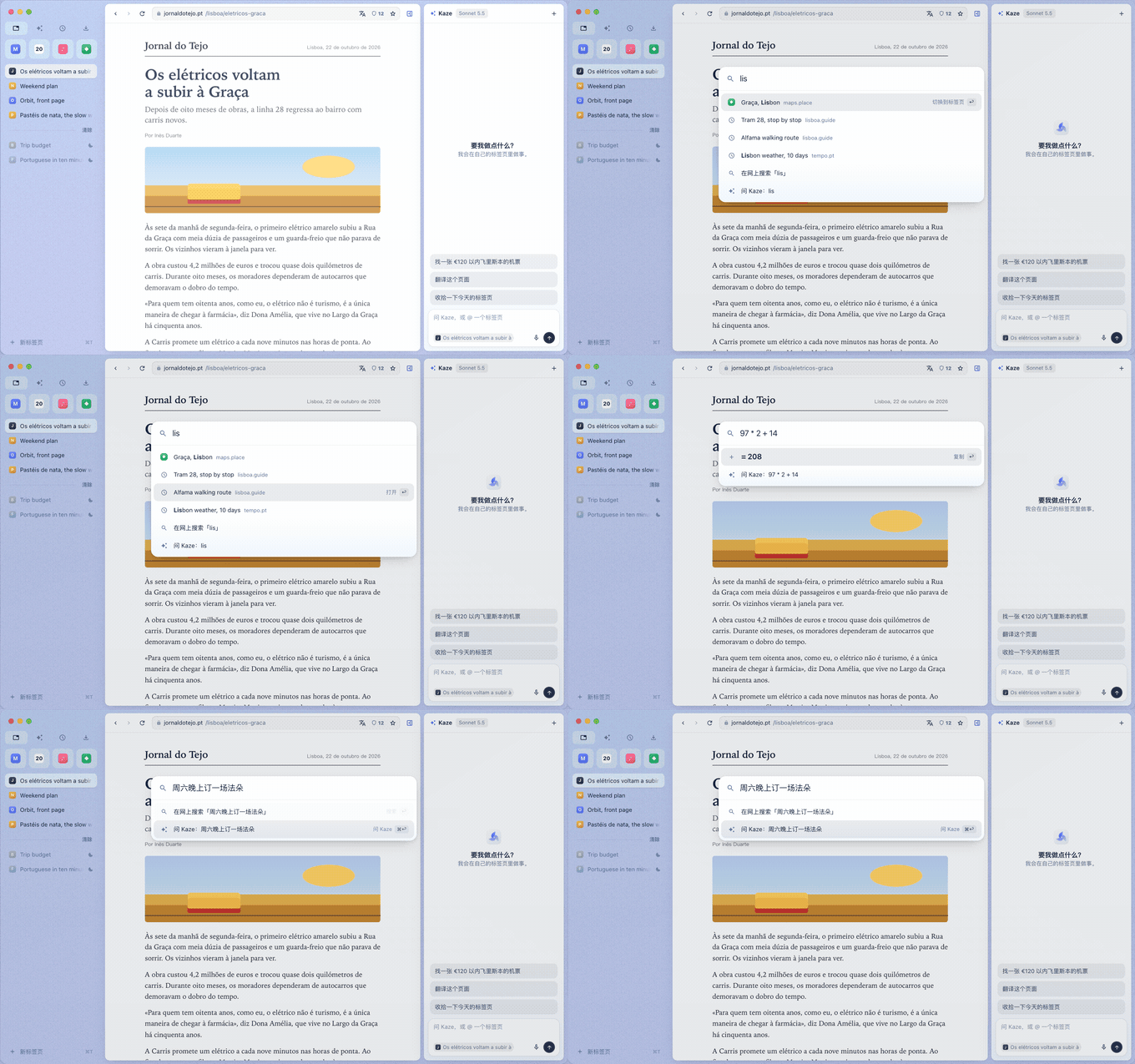
- Fast everyday shortcuts: Any task you run twice can be saved as a reusable skill, and
⌘Klets you jump across tabs, calculate totals inline, or hand a prompt straight to the agent.
Workflow 03 — Batch-Run Web AI Tools in the Background While Running 10+ Sessions Side by Side
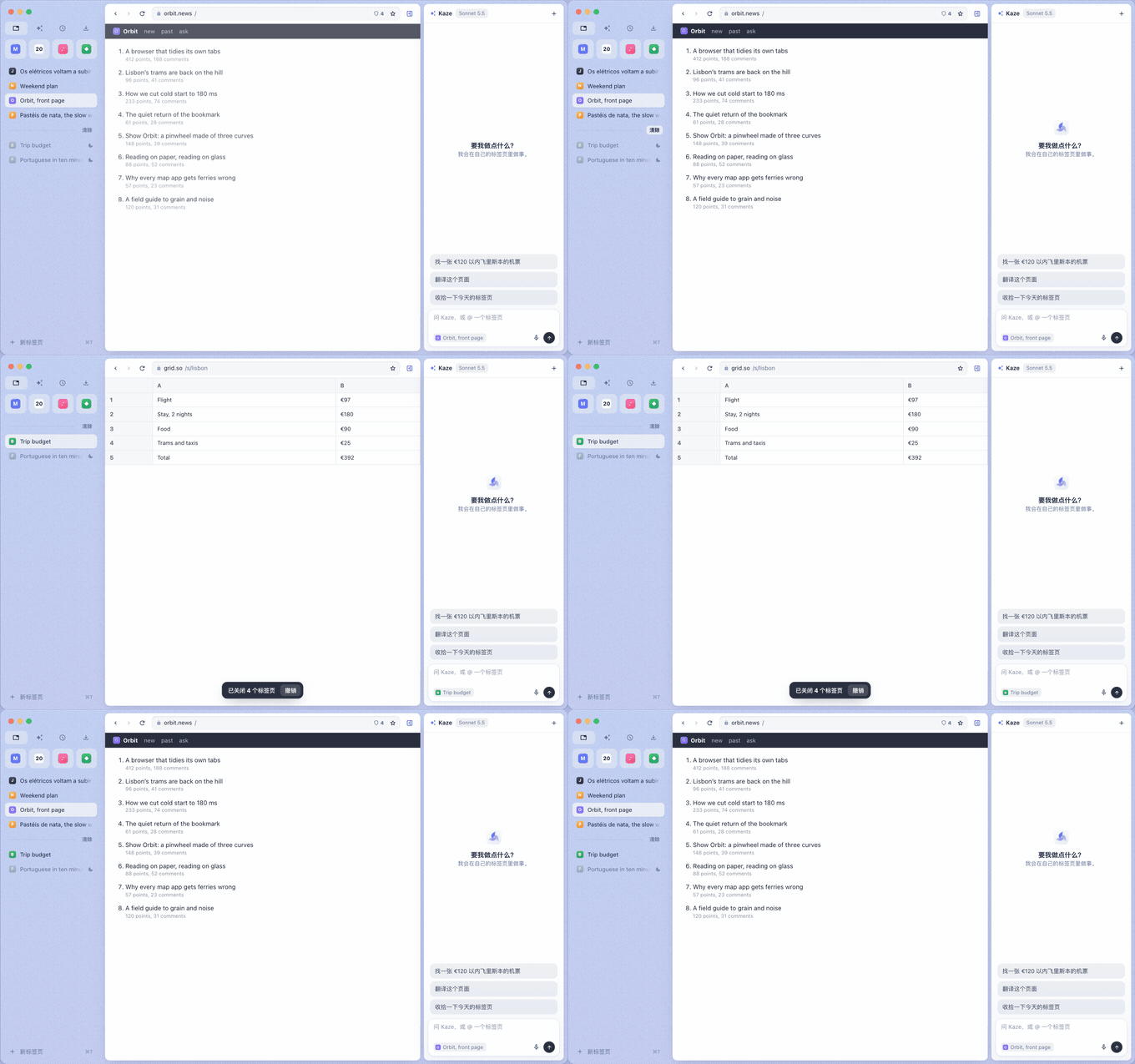
- Queue repetitive web jobs: Batch-generating video or image clips in web tools like Google Flow means uploading references, tweaking prompts, and clicking Generate dozens of times. Now an agent queues it inside its own background tab group.
- Your screen stays yours: You keep browsing X or reading docs in the foreground — no cursor hijacking, unlike traditional browser extensions that freeze your machine.
- Parallel isolation and one-click cleanup: A dozen concurrent sessions stay isolated in their own tab groups without colliding. One click clears temporary tabs when finished, and Undo brings the whole batch back if you close too much.
Workflow 04 — Enable Remote Access for Cloud Agents Like GrokBot and Muse to Avoid Bot Blocks
Cloud agents such as GrokBot and Muse share one frustrating weak spot: their built-in cloud browsers run on datacenter IPs with empty profiles, which constantly trigger captchas, anti-bot walls, or outright login blocks on mainstream platforms.
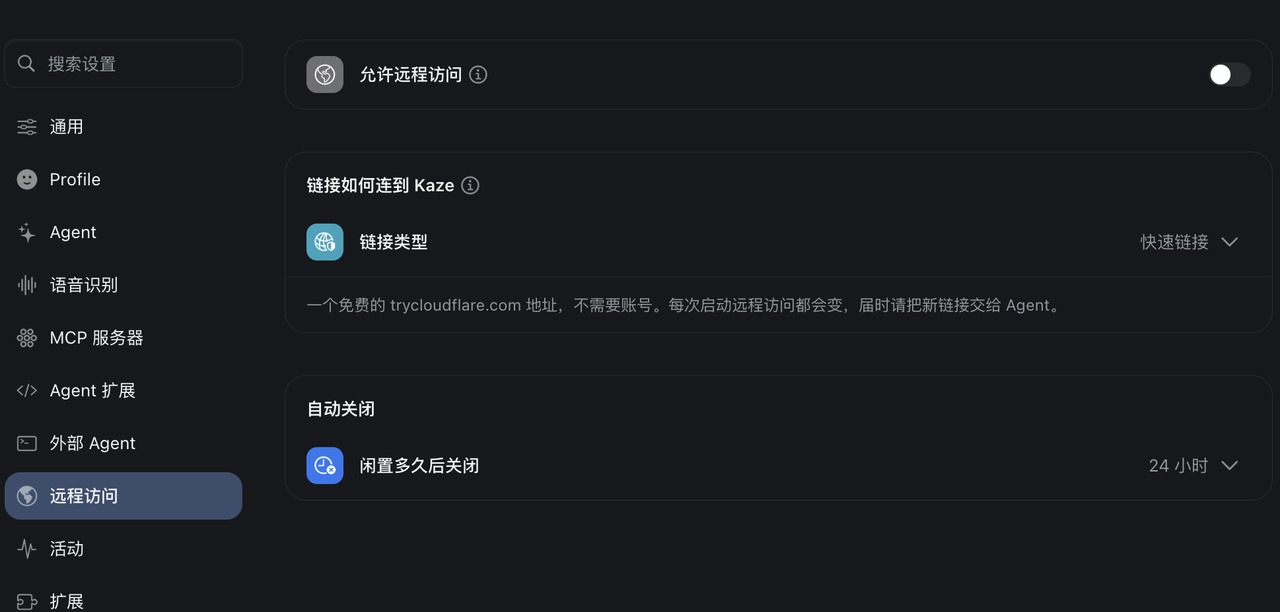
- Flip one switch: Open Settings › Remote Access, toggle it on, and keep the default Quick Link option to get a free temporary URL — no extra account needed.
- Hand the link to your cloud agent: Pass that URL to GrokBot, Muse, or another cloud assistant. Instructions still originate from the cloud, while the actual browsing runs inside Kaze on your own machine.
- Native residential network, auto-off safety: Every click runs on your real residential connection with your signed-in sessions intact, dramatically reducing bot blocks. You can set an idle auto-shutdown timer (24 hours by default), and every restart rotates to a fresh link.
02 Comparing 5 AI Browsers — Strengths and Real Trade-Offs
Here is how Kaze stacks up against the five alternatives people ask about most:
Where Kaze pulls ahead:
- VS Ego lite: Ego lite leans heavily toward developers, felt sluggish over long sessions (10 crashes across three-plus months in my local logs), and locked up when multiple sessions overlapped. Kaze feels light as an everyday browser, puts idle tabs to sleep automatically, and stays steady with 10+ sessions open.
- VS Perplexity Comet: Comet excels at search synthesis, but heavier agent usage ties into its paid Pro tier. Kaze is free, requires no signup, and connects to the AI accounts or tools you already pay for.
- VS Dia: Dia looks polished, yet it is limited to Apple Silicon Macs and focuses more on reading alongside you than completing multi-step work. Kaze runs on both Mac and Windows and handles background workflows end to end.
- VS Fellou: Fellou aims for full hands-off autonomy, which often stalls on captchas and feels awkward for everyday browsing. Kaze lets you press
⌘.to step in for any captcha and hand control right back while remaining a solid daily browser. - VS Traditional Browser Extensions: Extensions commandeer your active window and wrestle for your mouse. Kaze fences every agent into its own background tab group.
03 4-Step Beginner Setup (No Code Required)
01 Download Free from the Official Site
Head to kaze.build — free with no account required. On Apple Silicon Macs pick the arm64 build (standard build for older Intel Macs); on Windows, if SmartScreen prompts on first launch, click “More info → Run anyway”.
02 Import Your Existing Browser Logins in One Click
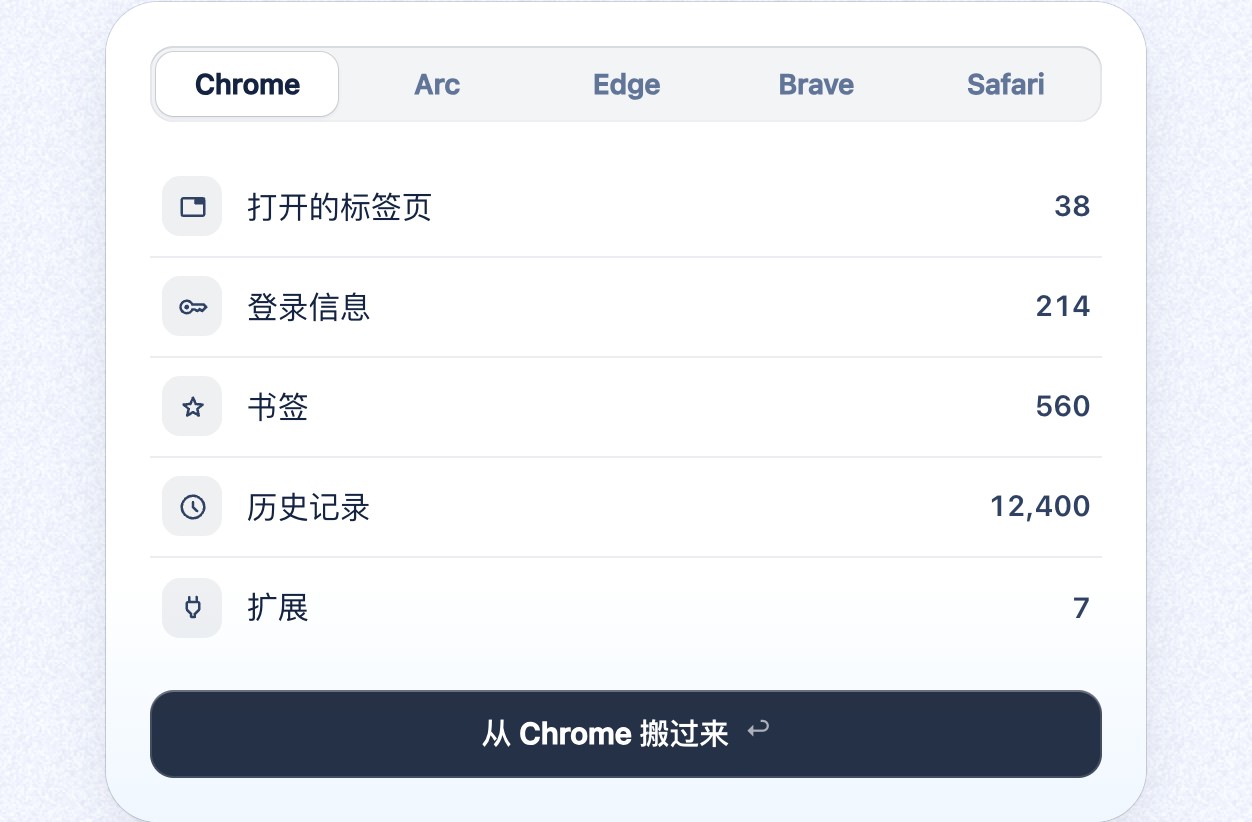
On first launch, select Chrome, Safari, Edge, Arc, or Brave in the import wizard to bring over open tabs, logged-in sessions, and bookmarks so your regular sites stay signed in (saved passwords do not transfer).
03 Connect an AI You Already Use
Open Settings › Agent: sign in directly with ChatGPT, or select an AI assistant already logged in on your computer to reuse your existing subscription without extra fees. To let external AI tools drive Kaze, open Settings › External agents and click Connect.
04 Learn Three Shortcuts and Try One Small Task
⌘E(or the top-right icon on Windows): Opens the AI sidebar — start with something low-risk, like summarizing several open articles.⌘.(Instant takeover): Jump in whenever a captcha appears or a click goes off track, then hand control back.⌥⌘W(Clean up): Closes every temporary tab the agent opened in one keystroke.
04 The Honest Bottom Line
If you mostly use your browser to watch videos and look things up — and have no reason to hand repetitive web clicks to AI — stick with Chrome or Safari. Switching browsers always costs adjustment time and password migration.
If your current AI browser lags or deadlocks under parallel tasks, or you routinely export orders, compare prices, batch-run web tools, or want to give cloud agents like GrokBot and Muse a native browser that avoids bot blocks, Kaze is free and requires no signup. Run it as a secondary browser for a week before uninstalling anything.
- Official site and free download (Mac / Windows): https://kaze.build
- Open-source GitHub repository: https://github.com/jackwener/Kaze