
After months of running AI agents across code, spreadsheets, and docs, WeChat remained the one awkward bottleneck. Hundreds of unread group messages after every meeting, manual drag-and-drop file transfers, and zero access to desktop files on the road. With Tencent WorkBuddy's latest Computer Use update, an AI can operate desktop WeChat like a human—no client hooks, no protocol hacks, and no ban anxiety.
Most people hesitated to connect AI to WeChat because of account bans. Legacy tools like WeTool injected into the client for bulk automation and got wiped out, while recent open-source plugins mostly act as 1-on-1 relays that cannot touch your desktop group chats. Here is what actually works in the latest WorkBuddy:
- Core capability: Operates desktop WeChat visually—summarizing group chats, sending messages, forwarding files, and bridging desktop apps.
- Account safety: Built by Tencent with zero client injection or protocol tampering; group auto-posting and financial actions are blocked by default.
- Zero setup friction: No code or local proxy required; Hunyuan Hy4 flash is free to try through November 30.
01 Why It Avoids Account Bans—and Where the Guardrails Sit
WeTool was shut down because it hooked directly into the WeChat client, altered protocols, and turned personal accounts into bulk-marketing bots.
WorkBuddy takes a completely different route. It does not touch WeChat’s memory, database, or network protocol—it simply views your screen, clicks, and types like a person.
No client hooks, no protocol hacks—let the agent handle the busywork while you keep your finger on Send.
It also enforces hard safety boundaries at the rule layer:
02 4-Step Walkthrough: From Toggle to Automated Group Summaries
Follow these four steps to get your first WeChat automation running in minutes.
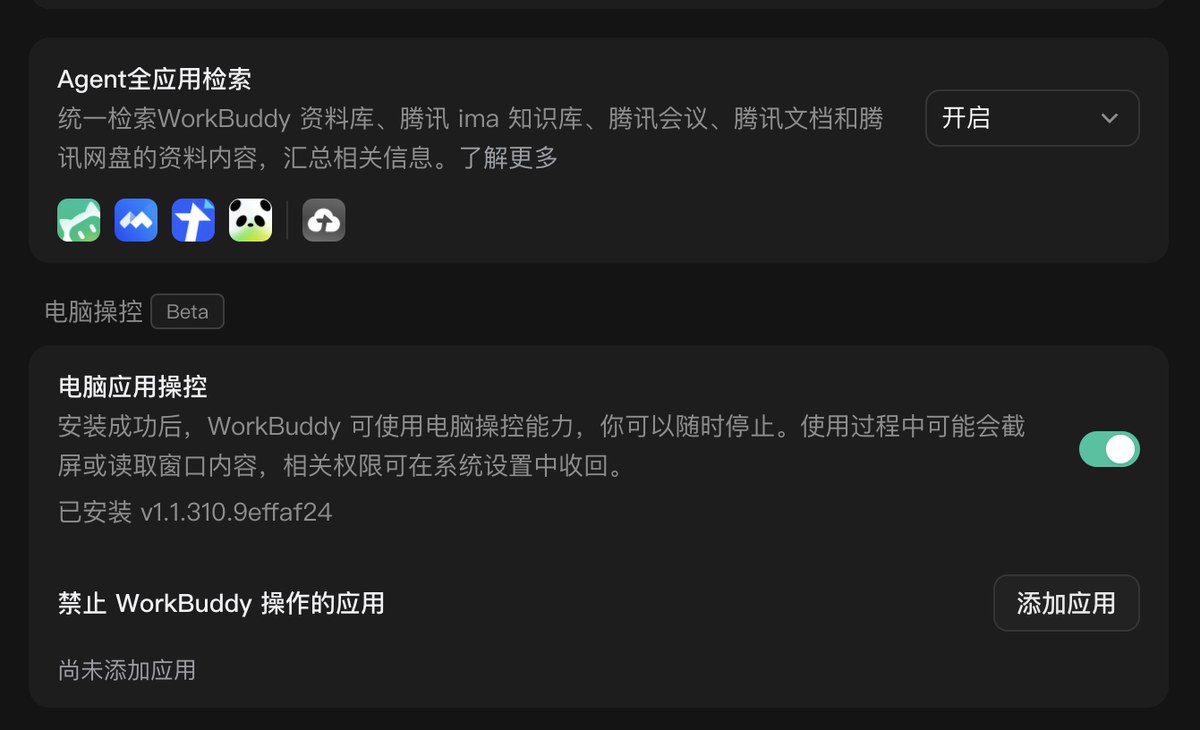
01 Update WorkBuddy and Enable Computer Use
Update to the latest WorkBuddy, open Settings → Agent, and turn on Computer Use (电脑应用操控). Keep desktop WeChat logged in and unminimized.
02 Grant macOS Permissions
On macOS, open System Settings → Privacy & Security and allow both Accessibility and Screen Recording for WorkBuddy so it can inspect windows and click elements. On Windows, approve the first-run prompt.
03 Auto-Summarize a Group Chat to Your File Transfer Helper
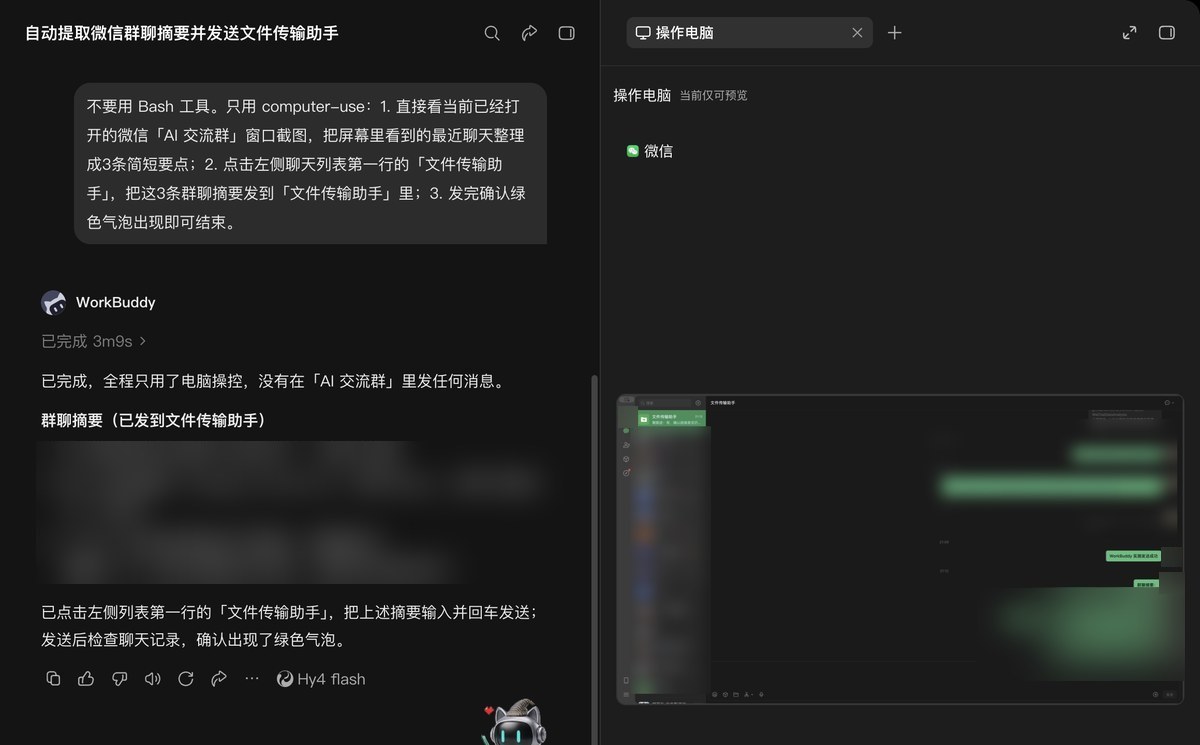
Stop scrolling through hundreds of unread messages. Let WorkBuddy read the active group chat screen in read-only mode, extract key points and action items, and send the digest to your own File Transfer chat without disturbing anyone in the group.
Copy-ready prompt (swap in your group name):
Use Computer Use to bring the main WeChat window to the foreground, open the group chat "AI 交流群" in read-only mode (never send any message to the group), summarize the visible messages into 3 concise bullet points plus follow-ups, then click "File Transfer" (文件传输助手) and send the summary there. Confirm the green message bubble appears.You can watch every click live in WorkBuddy’s right-hand preview pane until the digest lands cleanly in File Transfer.
04 Search a Chat and Send Messages or Files Automatically
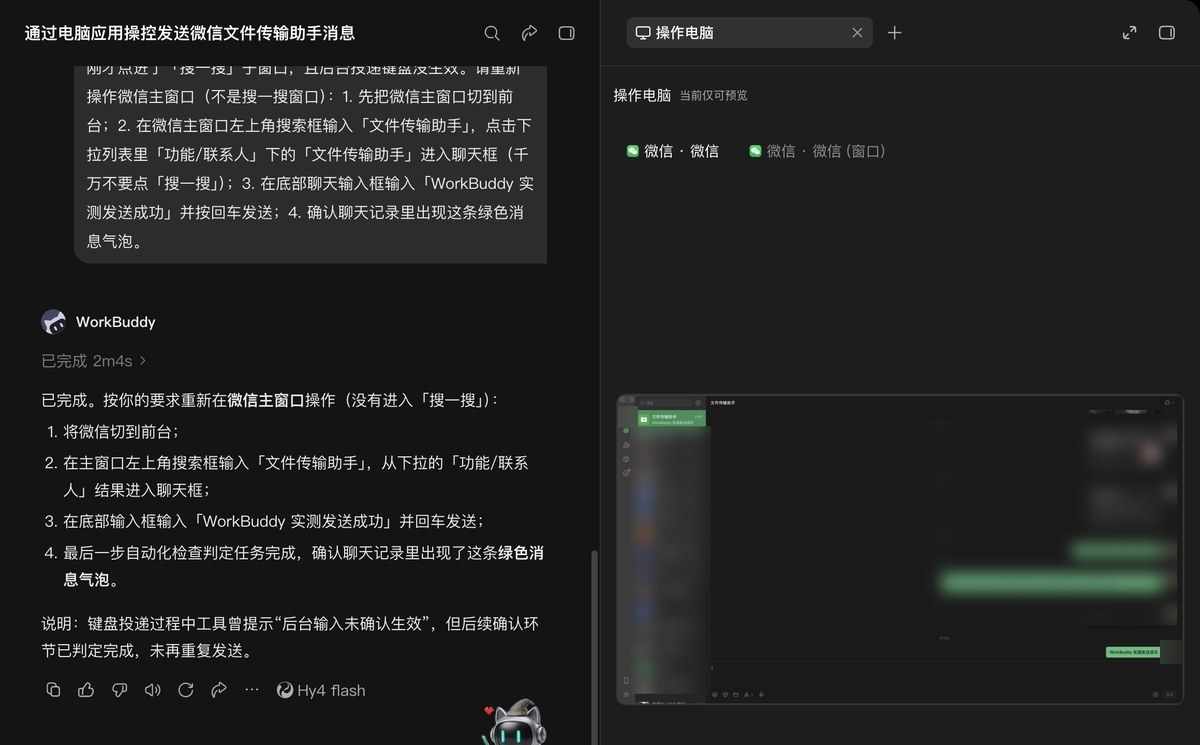
Once a report, chart, or meeting recap is ready on your computer, let WorkBuddy route it into File Transfer or a specific chat instead of context-switching yourself.
Copy-ready prompt:
Bring the main WeChat window to the foreground, click the top-left search box and type "文件传输助手", select it under Contacts/Features, enter the message in the chat input box and press Enter to send, then verify the green bubble appears in chat history.WorkBuddy checks the chat window before reporting completion so messages are neither missed nor duplicated.
03 Three More Everyday Workflows Worth Trying
Once Computer Use and WeChat are connected, three extra habits quickly pay off:
- Remote mobile dispatch: Link the WeChat Mini Program under Assistant in WorkBuddy’s sidebar. Message it from your phone on a train to crunch a desktop spreadsheet or draft a weekly recap and receive the finished result right back in WeChat.
- Moments digest: Ask WorkBuddy to open desktop WeChat Moments, scan recent updates, and summarize what matters.
- Tencent Workspace bridge: Cross-app search ties local files, Tencent Docs, Tencent Meeting, Tencent Drive, and ima Knowledge Base together so post-meeting recaps flow straight into WeChat.
04 Honest Take: Strengths and Current Limits
WorkBuddy’s biggest advantage is zero friction. No code, no proxy setup, and Hunyuan Hy4 flash is free to try through November 30, with smooth integration across Tencent’s office suite.
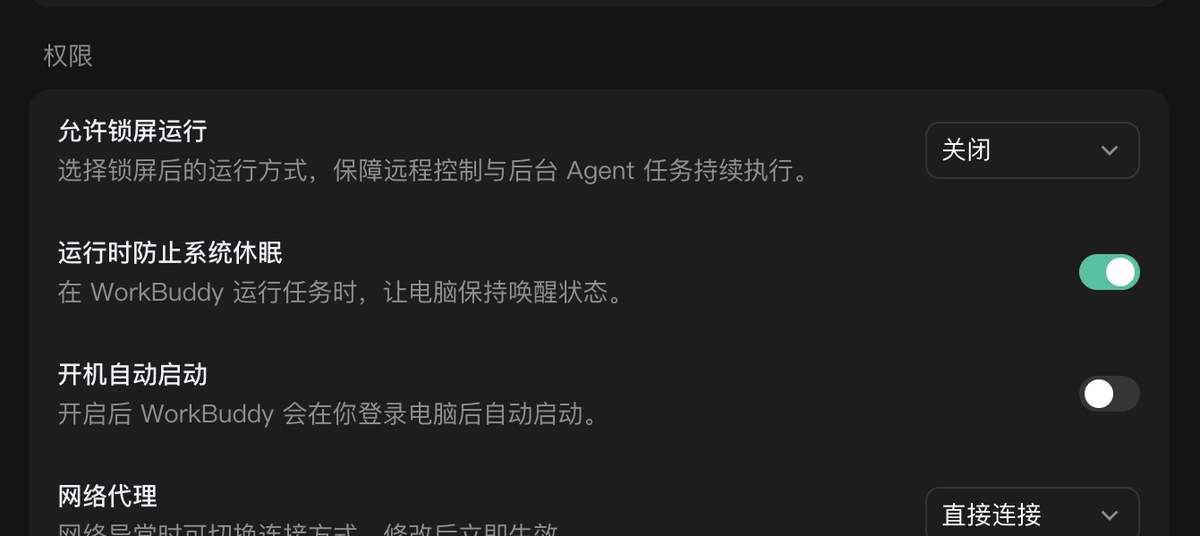
Its trade-offs are just as clear. Computer Use is still in beta—visual clicks are naturally slower than APIs, cluttered windows can cause misclicks unless your instructions are explicit, and everything depends on your computer staying awake and online.
If you are looking for bulk group blasting or unattended 24/7 customer service, skip it—those doors are intentionally locked. If you just want an extra pair of hands to summarize busy chats, move files, and cut down window switching while keeping the Send key in your own hands, it is well worth trying.