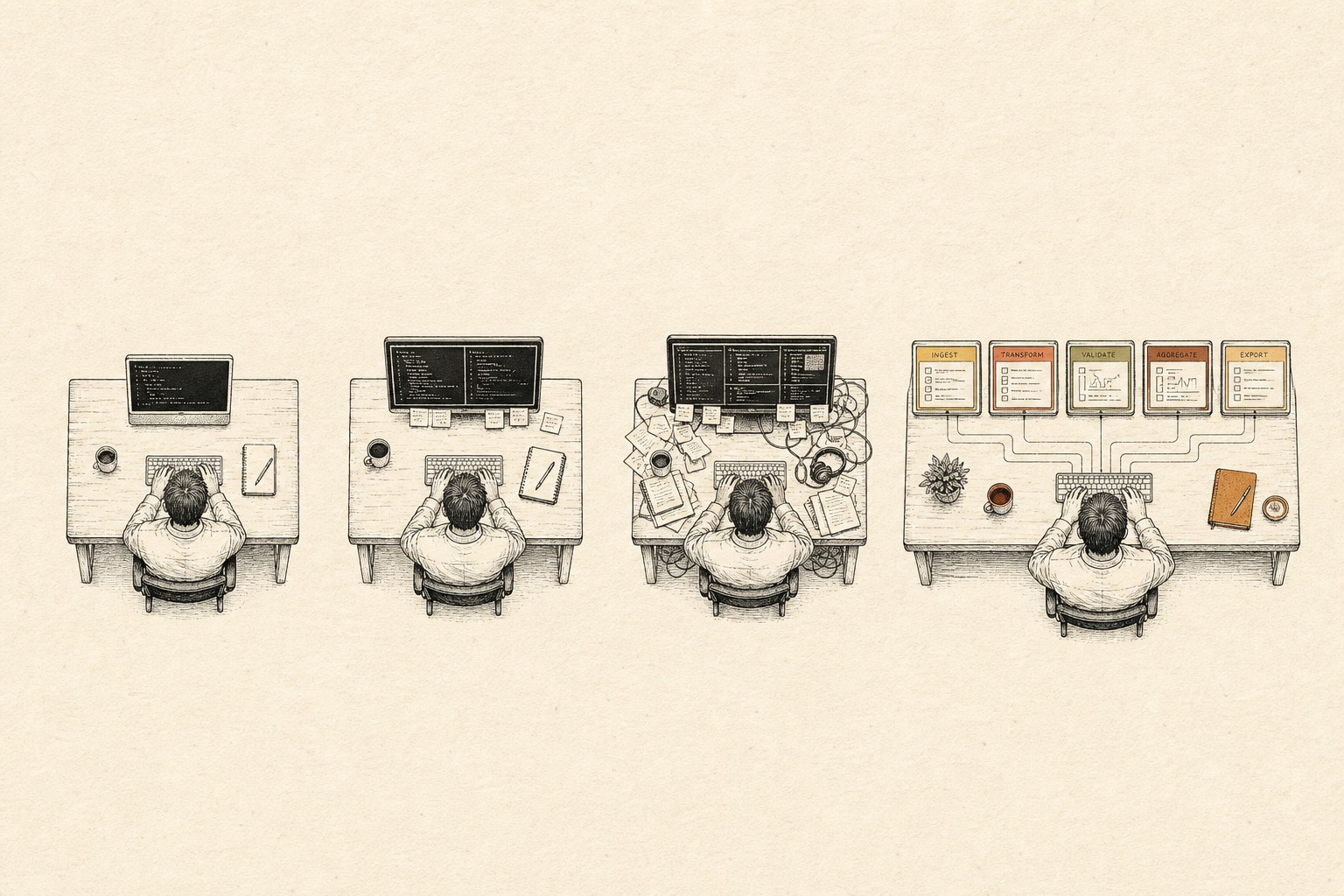
Warp looks great, tmux is solid, and cmux was already plenty comfortable. But after installing Orca, I moved my workflow over anyway.
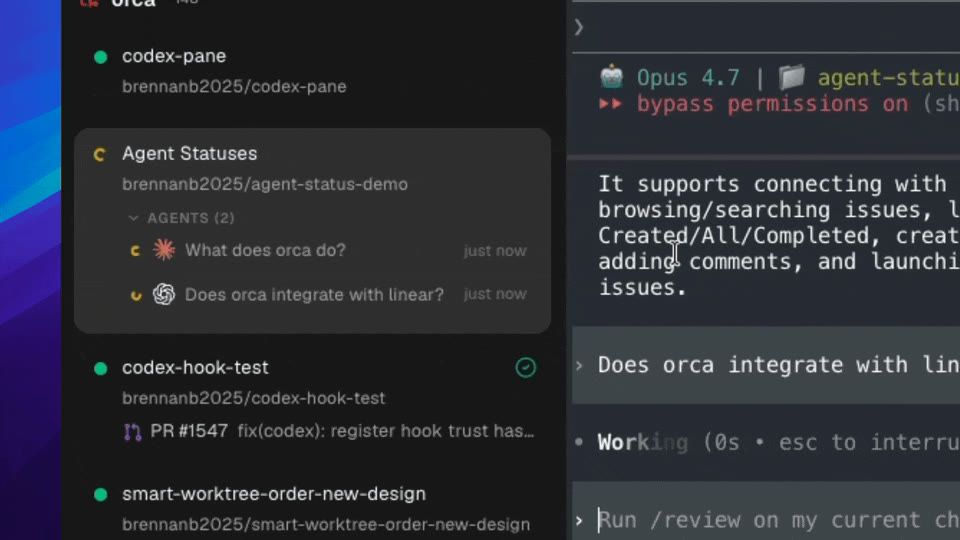
The reason is simple. Once I started running multiple AIs, I lost track of who was actually working.
When I only ran Claude Code, one window was enough. Later, when Codex and OpenCode were running alongside it, I constantly had to hunt back and forth to see who was working, who was waiting on me, and which files had been modified.
Orca eliminates these exact little headaches.
Running Multiple AIs at Once Is Finally Less Chaotic
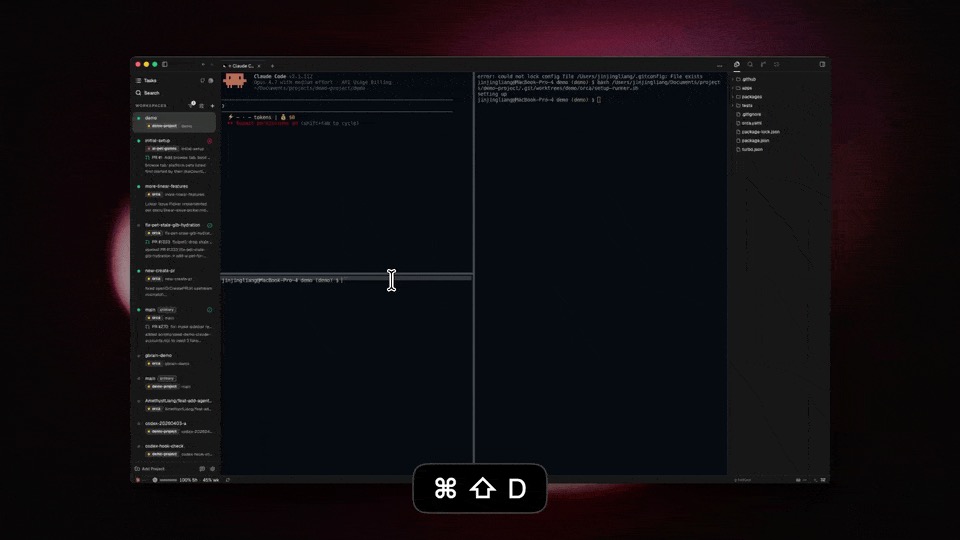
Orca isolates each task in its own copy of the project. Even with multiple AIs editing at once, they won’t immediately collide over the same files.
The sidebar shows who’s running and who’s waiting on a reply. Just click in to pick up the conversation.
There’s a specific term for this in Git, but beginners don’t need to learn it upfront. All you need to know is that keeping tasks separate makes troubleshooting much easier when things break.
Click Directly on the Page, Skip Explaining It Twice
When building web pages, I used to take a screenshot, circle the spot, and head back to the terminal to explain which button in the top-right corner I meant.
In Orca, you can click page elements directly. It hands the code snippet and a screenshot of that specific element straight to the AI.
This feature is called Design Mode. You don’t have to memorize the name—in practice, it just means one less screenshot to take and fewer wasted words.
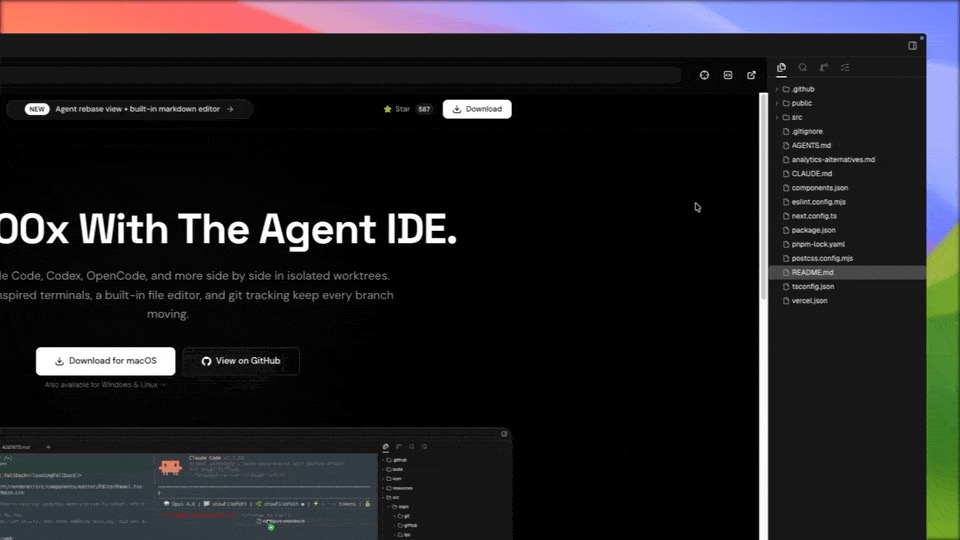
Terminal, Web Page, and Files—All in One Place
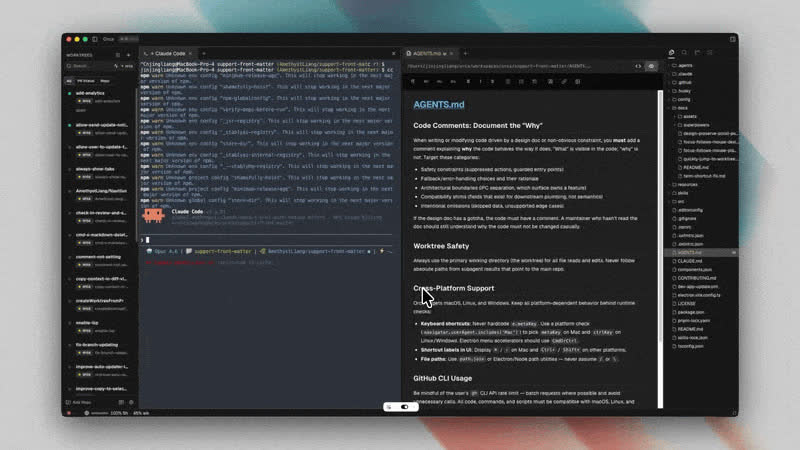
Once the AI finishes making changes, I can inspect the terminal, web page, files, and diffs within the exact same task.
The five or six windows I used to keep open are cut in half. Individually, each feature feels ordinary, but bringing them together is what actually saves effort.
Know at a Glance Whether Long-Running Tasks Have Stopped
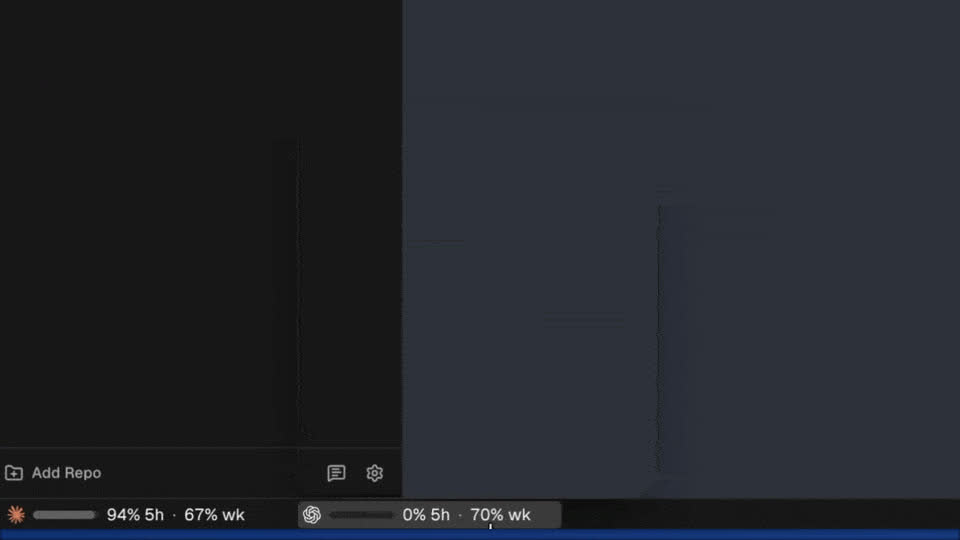
Orca displays usage and reset times for Claude and Codex, and lets you switch Codex accounts directly.
The most annoying part of long-running tasks is discovering thirty minutes later that you hit your rate limit early on. This feature isn’t flashy, but it genuinely cuts down on wasted waiting time.
No More Hunting Around to See What Changed
Once the AI is done, you can see exactly which files it touched. If something looks off, leave an inline comment and send it back to fix it. GitHub check results can live on the same screen, too.
It’s Not Magic, Either
Orca won’t make Claude or Codex any smarter. The mistakes models make are still there—once changes are finished, you still have to inspect the files and run tests.
The more tasks you run at once, the heavier the hit on memory and CPU. Old workspaces need cleaning up, too. It currently has 57.5k GitHub stars and updates rapidly. High popularity doesn’t mean every release is rock-solid, and bumping into bugs occasionally is completely normal.
It runs on macOS, Windows, and Linux, though real-world experience may vary across platforms.
If you usually only run one AI at a time, Ghostty, cmux, or a standard terminal is already enough. Orca will feel too heavy for that kind of workflow.
How Beginners Should Try It
Don’t start by fiddling with configs, and don’t fire up ten AIs all at once.
Connect whichever tool you already have working—Claude Code or Codex. Open a project, and hand it just one small task.
Look for just three things: do the tasks avoid conflicting with each other, does clicking elements on the page save you an extra detour, and can you understand what the AI touched much faster after it finishes?
If none of those three things make your life easier, there’s no reason to switch tools just for 57.5k stars.
I hopped from Warp to tmux, then to cmux, and finally landed on Orca. The reason isn’t mysterious. It saves me from hunting down windows, guessing which AI is stuck, and worrying about conflicting changes tangling together.
You don’t need to constantly chase new tools. When your headaches change, that’s when you switch.