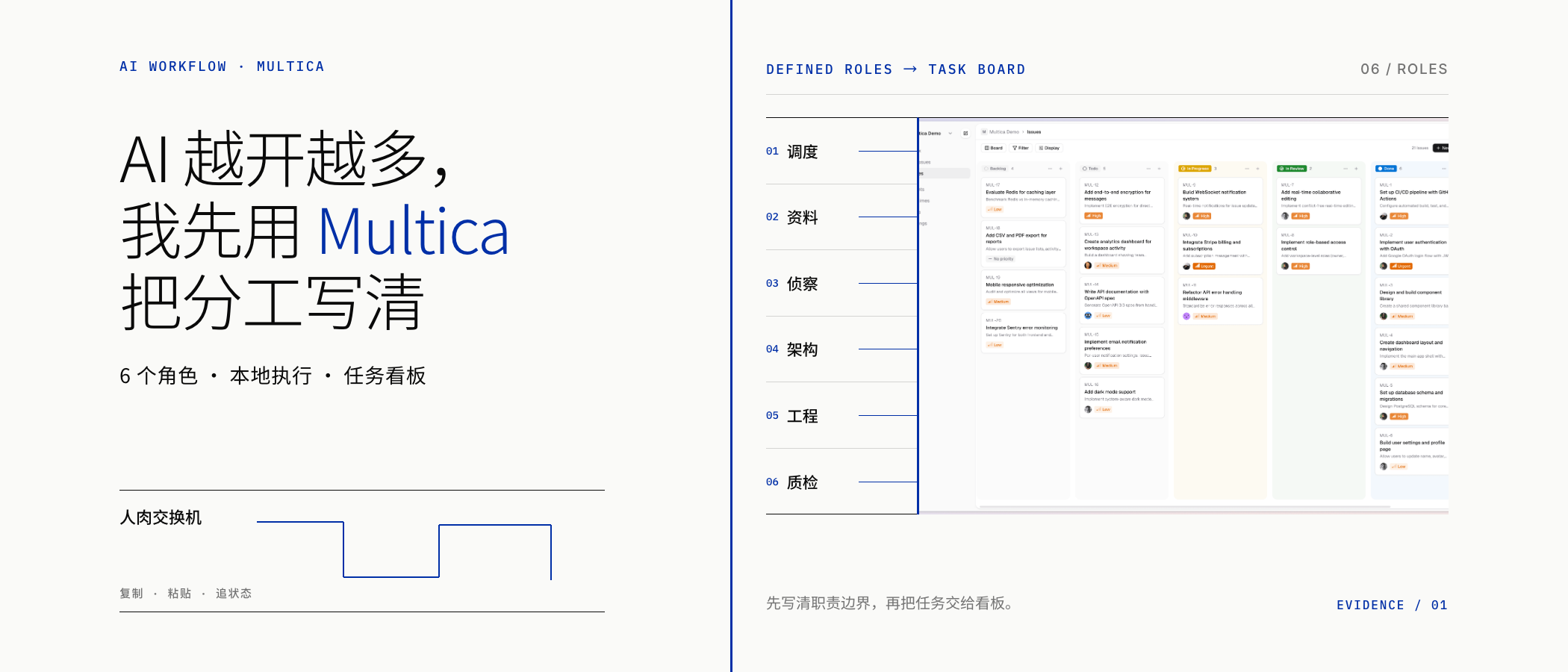
You've got Claude Code and Codex running side by side: Claude Code handles the core logic on the left, Codex fills in tests on the right, and Gemini sits in between, helping you chew through that 3,000-line config file. You copy and paste between three windows, acting like a human network switch.
Every AI is smart on its own, but put them together and things go sideways fast. Who is editing which file? What step is the last task on? How do you cleanly feed what Gemini extracted into Claude Code? When one task gets stuck, should the other two keep running?
A lot of people say AI still isn’t capable enough. After using it for a while, I realized that the busiest person was actually me: the models write code while I shuttle information back and forth; the models wait for instructions while I chase down progress; each model remembers only its own conversation, leaving me to piece the whole project back together.
Multica aims to tackle precisely this: acting as the squad leader for a bunch of AI coders.
It doesn’t compete with Claude Code or Codex. Instead, it pulls already-capable AI tools into a unified task system, issuing them badges, scheduling their tasks, and tracking their progress. You create an Issue on the board and assign it to an AI; the corresponding Agent picks up the task, the local daemon on the bound computer invokes the underlying AI CLI, reports status during execution, and returns the results when finished.
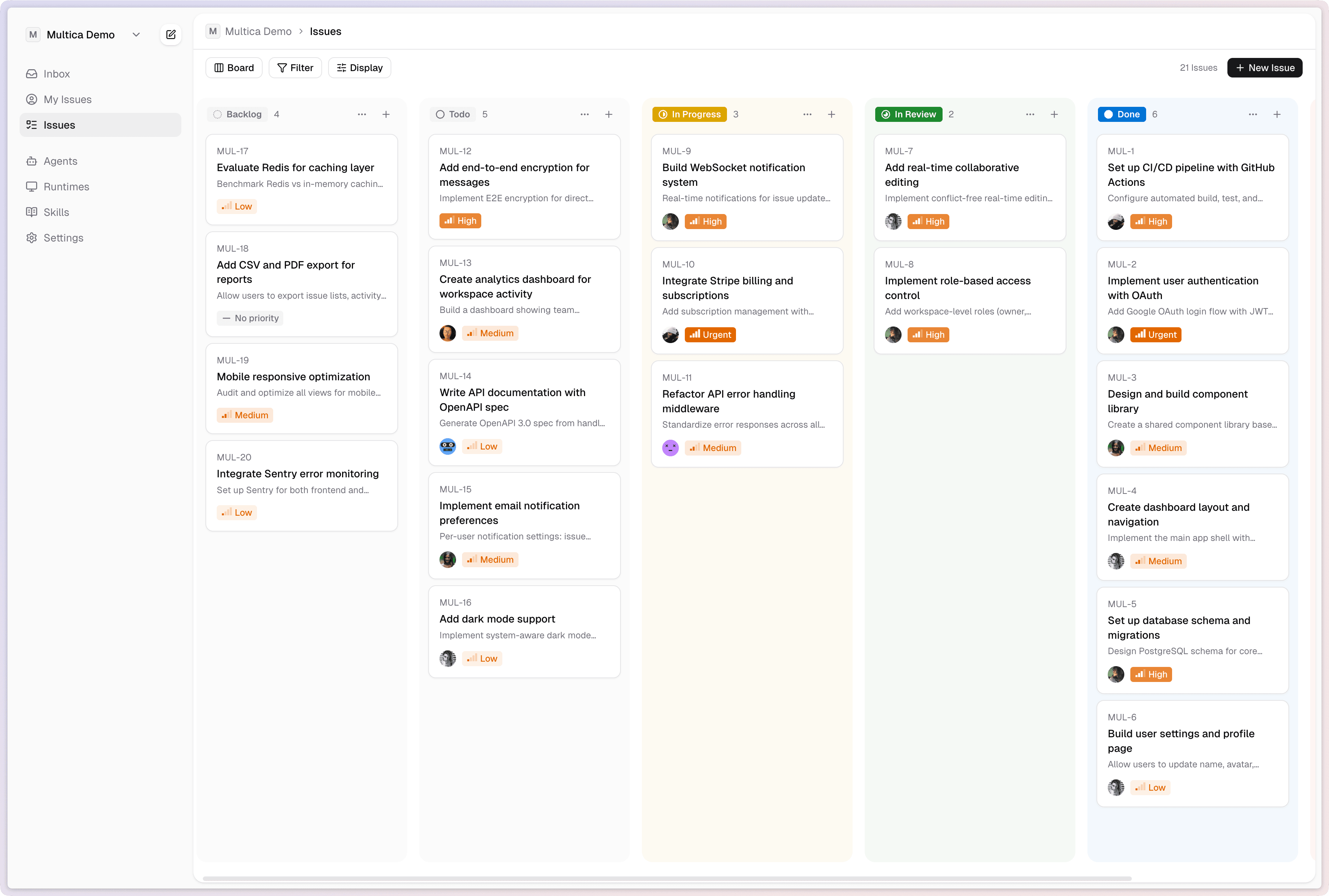
Above is the official Multica board interface. Humans and AI share the same task board, allowing you to delegate work to an AI employee just like assigning tasks to a coworker.
Multica’s code repository is public, and it supports self-hosting. However, it uses a modified Apache 2.0 license with additional commercial and branding terms, so you can’t equate “public code” with “free for all uses forever.”
The tool lineup also changes quickly. Verified as of July 17, 2026, the official Providers Matrix lists 16 built-in tools, including Claude Code, Codex, Cursor, Hermes, OpenClaw, Grok, and others; Gemini does not appear in this matrix as an independent provider. My Gemini researcher is a personal workflow setup—it doesn’t mean everyone gets the same combination out of the box.
After running multica setup, the daemon detects recognizable AI CLIs in your computer’s PATH and registers them as runtimes. You still have to create the actual AI employees yourself and bind them to specific runtimes; installing the software doesn’t automatically assemble the tools on your machine into a team.
My Team Setup
I set up a six-member team in Multica. The screenshot below shows my division of labor: one dispatch hub plus five specialized AIs. I clearly defined what each one handles and what is strictly off-limits.
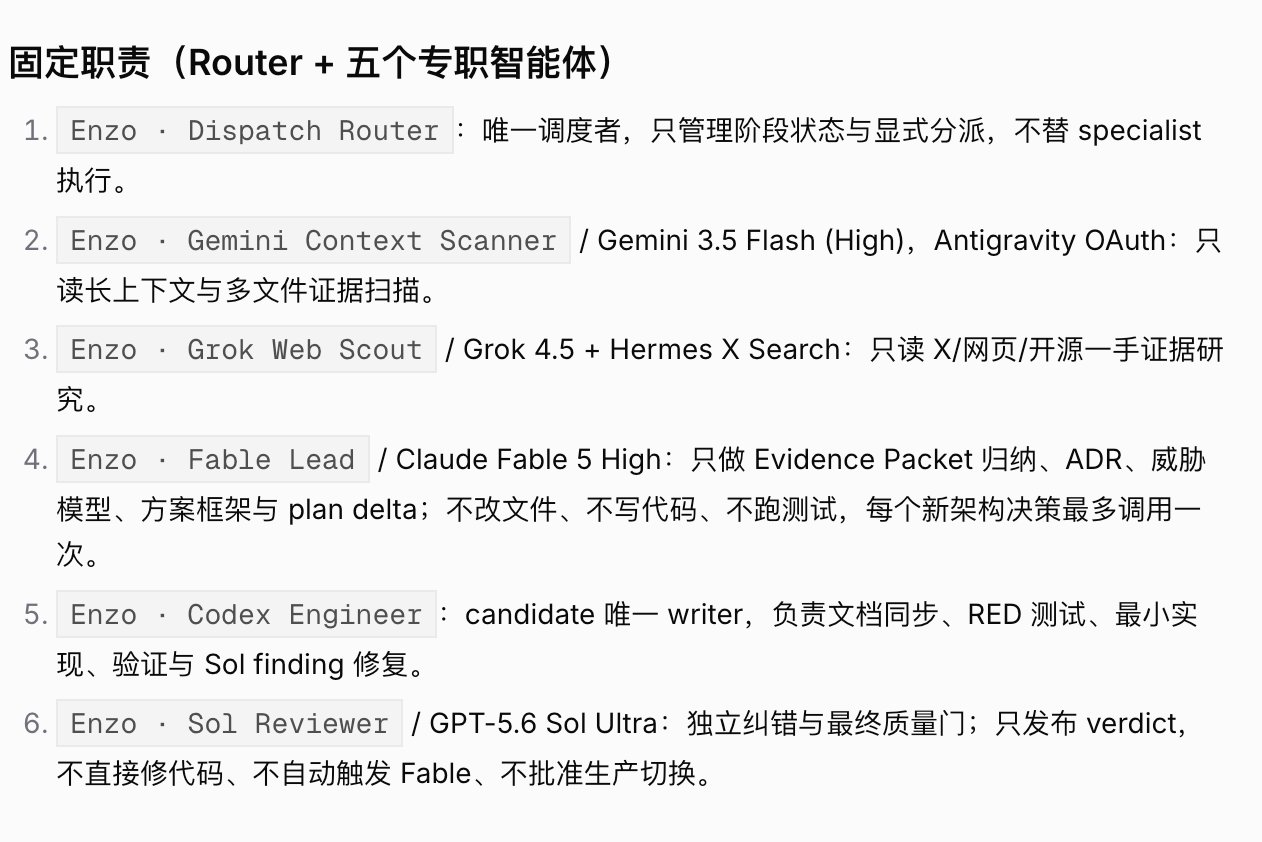
Dispatcher: Dispatch Router
Only distributes tasks and monitors status without touching the work itself. When a request comes in, it first determines who should take it: if information lookup is needed, it calls the researcher; if architecture design is needed, it calls the architect; only when it’s time to write code does it hand off to the engineer.
Researcher: Gemini Context Scanner
Dedicated to reading ultra-long documents and scanning multiple files. I hand off long, sprawling context to it—like reading an entire project directory in one go, or chewing through a 3,000-line config file—and have it extract what’s relevant to the current task.
Scout: Grok Web Scout
Responsible for real-time web searches, browsing websites, and checking the latest updates on X. For instance, if a framework just dropped an update yesterday that our project depends on, I have the scout dig up the original announcement, official docs, and developer discussions first, then bring back usable material.
Architect: Fable Lead
Responsible for solution design, tech stack selection, and risk assessment. I gave it one hard-and-fast rule: don’t touch the code. It can analyze the project structure, point out which modules need changes, and outline the implementation order, but it cannot touch or edit files along the way.
Engineer: Codex Engineer
The only role on the team allowed to write code. It turns the architect’s proposal into actual code, fills in tests, fixes bugs, and delivers reviewable results. Concentrating write permissions into a single role ensures you don’t have three or four AIs modifying the same batch of files at once, leaving everyone confused about who changed what.
Reviewer: Sol Reviewer
Independent review, dedicated to nitpicking code and making the final pass-or-reject call. It also only reviews without writing; when it spots an issue, it bounces the task back to Codex Engineer instead of trying to patch things itself while pointing out flaws.
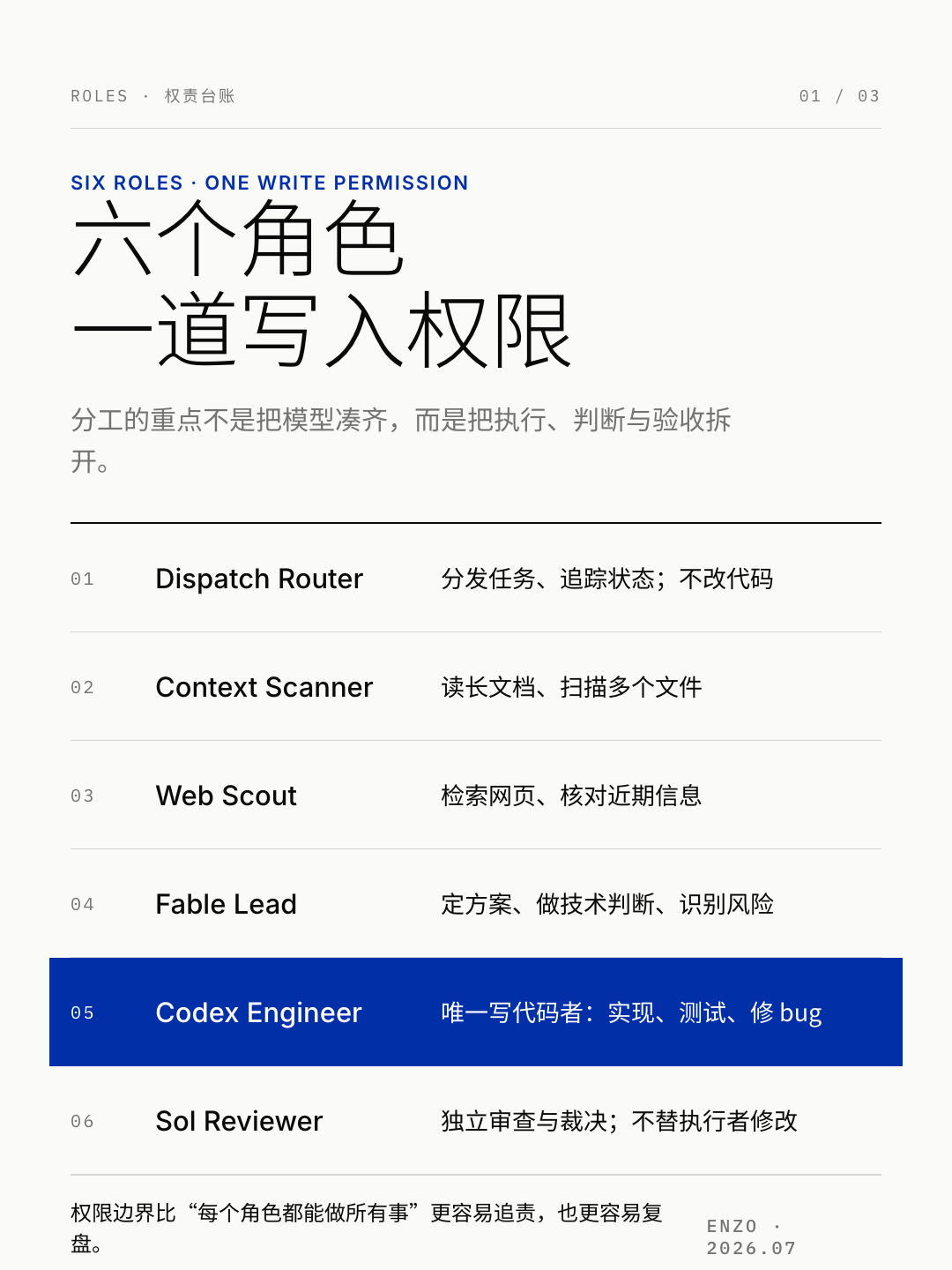
Why break things down so granularly? Because AI has a common bad habit: ask it to architect, write code, add tests, and review its own output all at once, and it will cut corners along the way, cobbling together something that runs but is a nightmare to maintain. Splitting design, implementation, and review gives every stage a clear owner, making it much easier to pinpoint where things went wrong.
Task statuses in Multica move from queued, dispatched, and running to completed, failed, or cancelled. The AI can report progress during execution and raise blockers when it hits a wall. The dashboard makes it much easier to see where things are stuck, but that doesn’t mean you can blindly leave tasks running overnight; unclear task descriptions, underlying tool errors, or environment issues will cause the AI to fail just the same.

I also really like its Skills system, though one point from the original text needs correcting: completing a task successfully doesn’t magically turn the output into a Skill on its own. You have to package verified methods into a Skill or import an existing one, then attach it to the relevant Agent. Whenever a similar deployment, check, or operational task comes up later, other roles on the team can reuse it without having to be taught from scratch every time.
Is the Code Secure?
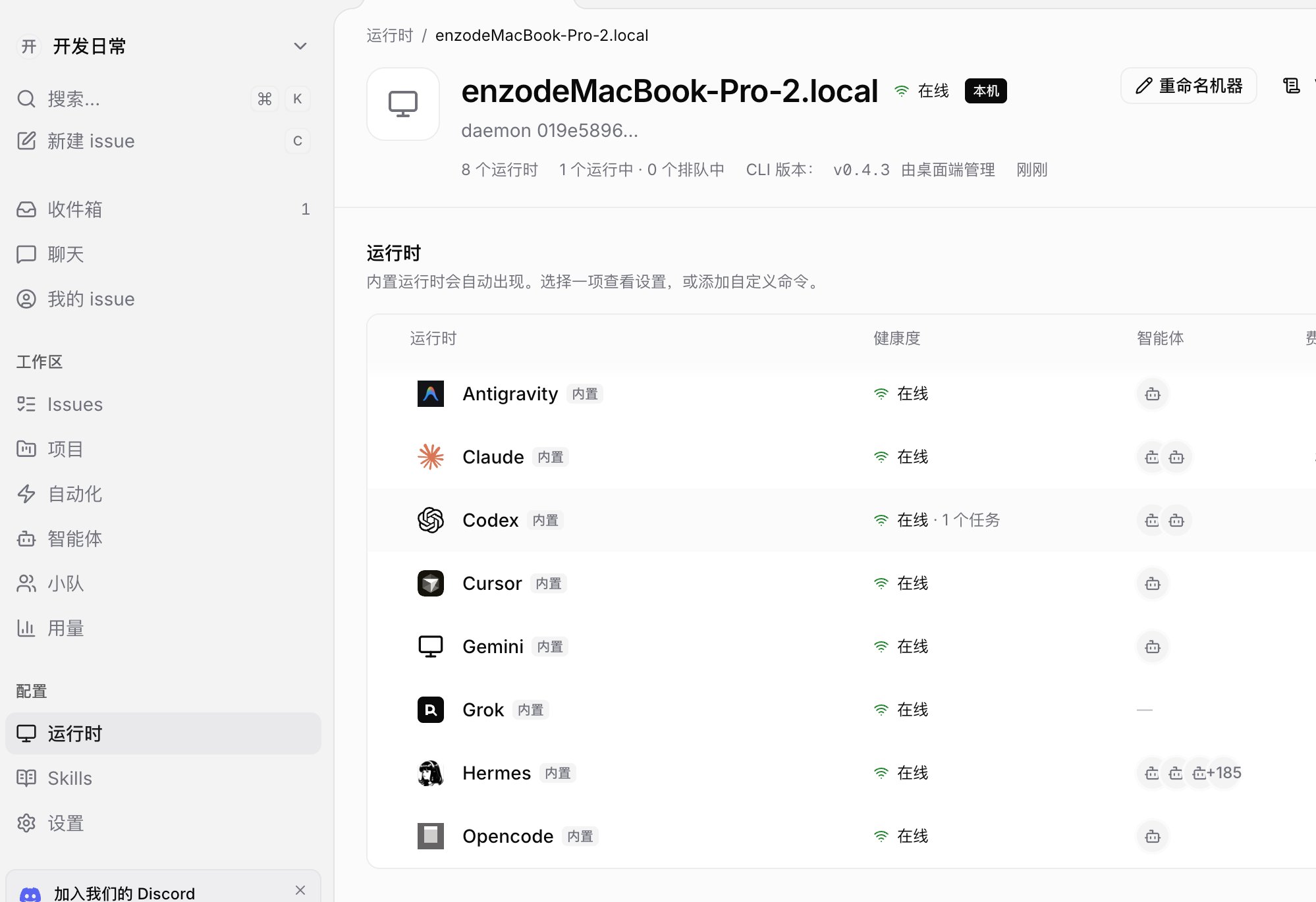
Above is my runtime environment panel. The background daemon runs on my MacBook, and the panel shows eight AI tools online and on standby.
Multica’s server is responsible for storing and coordinating projects, issues, task statuses, and other metadata; the actual invocation of AI CLIs happens via the local daemon on the bound machine. The server doesn’t execute code on behalf of Agents, nor does it dig directly into your local directories to do work.
However, “local execution” doesn’t mean “data never leaves your computer.” If the underlying call goes to a remote model, the prompts, file snippets, and context needed to complete the task may still be transmitted according to the policies of the respective AI tools and model providers. For proprietary company code, client data, secrets, and internal projects, you still need to audit each tool’s permissions and data policies individually.
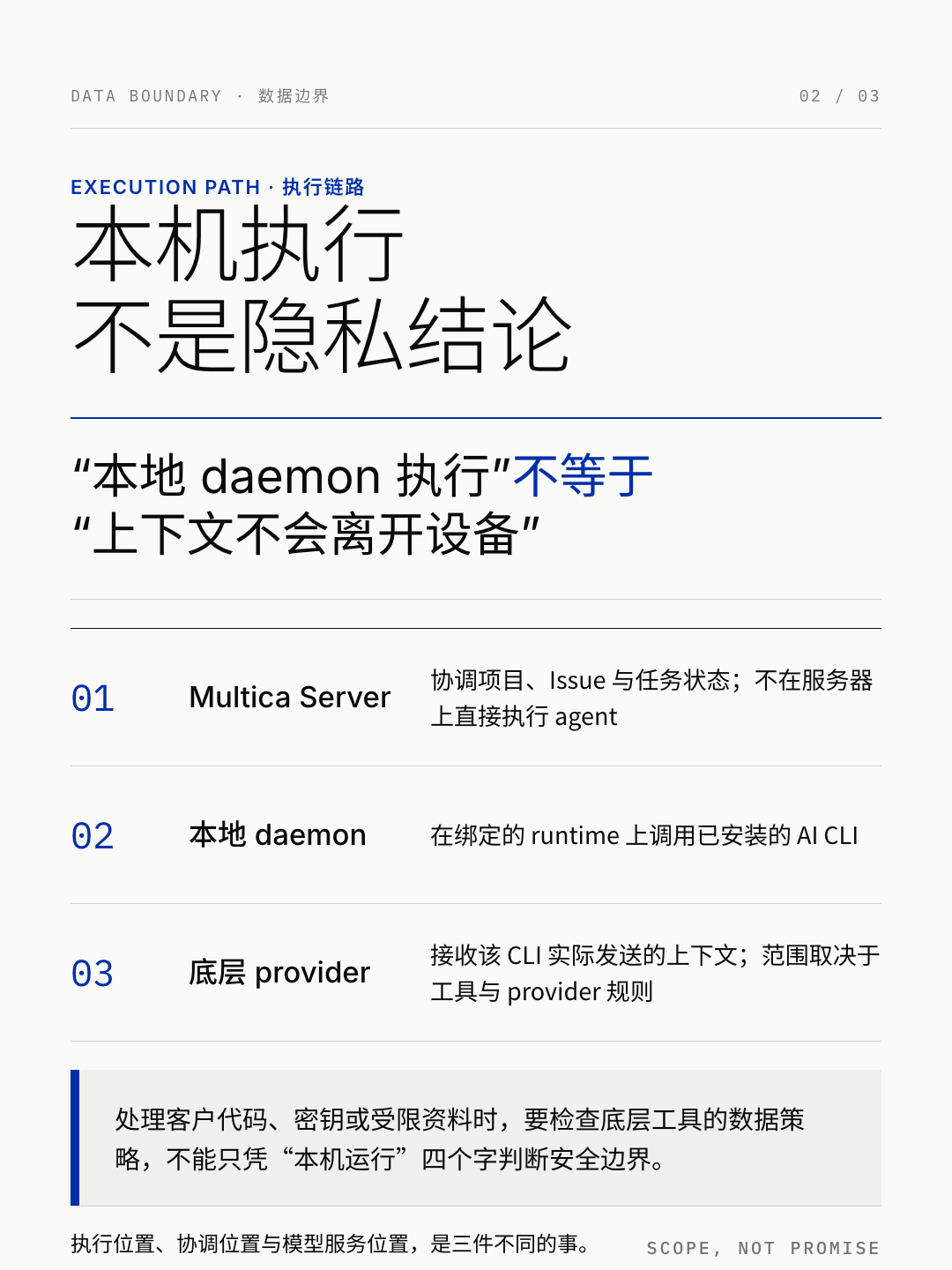
The original screenshot also shows device names, workspaces, and daemon details. They aren’t passwords, but they are operational traces worth scrubbing before publishing. A screenshot proves which runtimes were online at the time; a single image alone cannot prove a cross-device task actually ran to completion.

Managing More Than Just One Machine
This is one feature of Multica that genuinely surprised me: it doesn’t just manage the machine right in front of you.
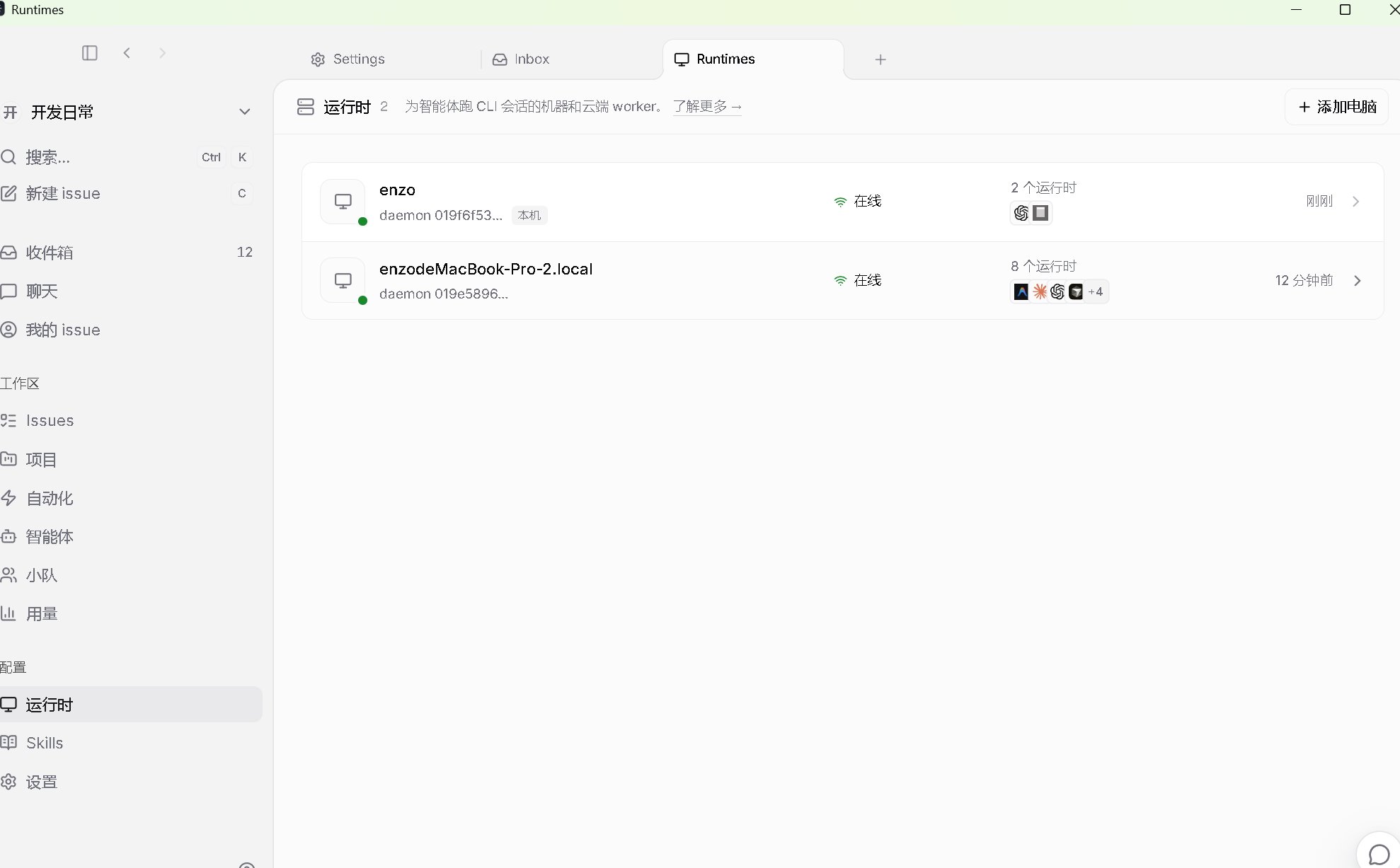
Above is my own Runtimes panel. There are two devices listed: one named enzo, which is my work computer; the other is enzodeMacBook-Pro-2.local. Both show as online in the screenshot, and you can see at a glance what runtimes and tools are available on each machine.
You can run one daemon on your office Mac and another on your home PC. When traveling, opening Multica lets you see the online status of both machines without having to SSH in first to run status commands.
Agents on your work machine can handle one class of tasks, a beefier desktop at home can take on builds, and tools on your laptop can handle document scanning. When you need more computing power, you can simply add another idle machine into the runtime pool.
There’s an important caveat here: tasks don’t automatically drift to another machine just because it’s faster. Each Agent is bound to a runtime you select, and tasks must be assigned according to that relationship—there is no automatic load balancing.
So “managing all compute from a single dashboard” is more accurately understood as: you can monitor runtime status, activity, and usage across multiple machines in one view, but the actual task execution still falls on each bound computer and its underlying tools.
How Does It Compare to Hermes and OpenClaw?
They occupy completely different niches; one doesn’t simply replace the other.
Multica: Managing a Team
Multica is an AI team management platform. It handles task distribution across multiple AIs and humans: who is doing what, how far along things are, which task is stuck, and which Skills belong to which Agents. It fits people who are already running multiple AI tools simultaneously and need to break down tasks and track status.
Hermes: Long-Term Execution with Context
Hermes is an AI agent equipped with persistent memory, Skills, subagents, channels, and automation capabilities. I prefer to think of it as a long-term personal assistant—the longer you work together, the more memories and reusable methods it accumulates.
Hermes’s MoA isn’t “multi-model voting” as the original text claimed, either. It has multiple reference models analyze a problem in parallel before handing the results to an aggregator model, which generates the final response and calls tools when needed. Running multiple models generally increases invocation volume, but costs depend on the models, turns, and configuration—you can’t just slap a fixed “80x” multiplier on it.
OpenClaw: Hooking AI into Chat Interfaces
OpenClaw is a self-hosted personal AI assistant and messaging gateway. A typical use case is connecting AI to chat channels, letting you assign tasks, manage schedules, triage inboxes, or run background automations via chat messages. It can participate in coding tasks too, but its strength lies in acting as a messaging gateway and personal automation hub.
The original text mentioned WeChat, and this needs clarification: OpenClaw’s WeChat integration relies on an external plugin—it doesn’t come out of the box by default in every installation environment.
The Bottom Line on How to Choose
If you need to “split five tasks among three AIs and watch who’s stuck and who’s finished,” that’s Multica; if you need to “fire off a message in a chat app and have an AI get things done,” that’s OpenClaw; if you need an Agent with persistent memory, Skills, and subagents, Hermes is the better fit.
They can also work together. Multica’s current list of built-in providers includes Hermes and OpenClaw. Once the respective CLIs are installed and recognized by the runtime, they can plug into Multica as underlying tools. Multica handles tasks and status, while Hermes or OpenClaw tackles what they do best.
Does It Burn Through Cash?
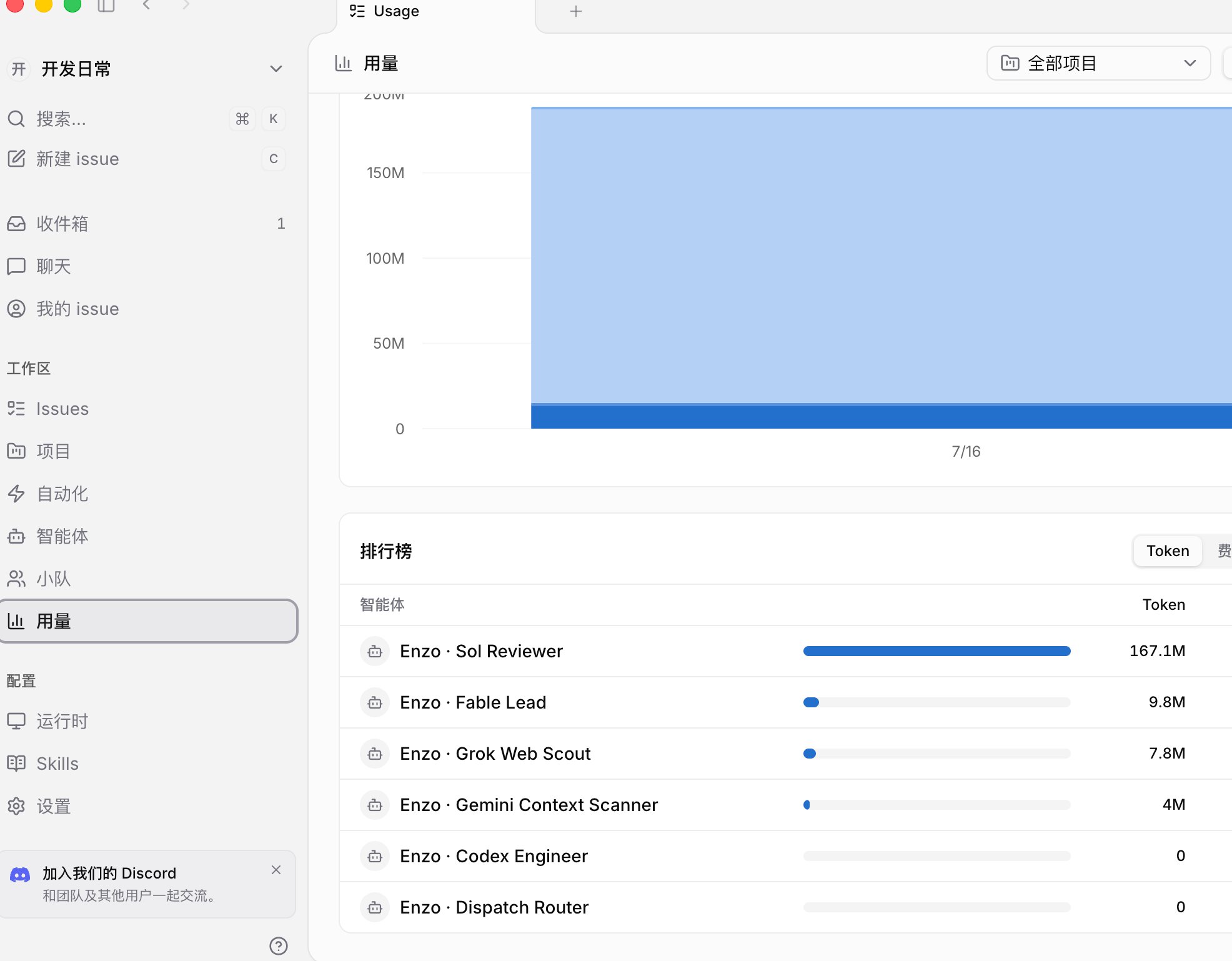
One look at my usage dashboard makes it clear why some people call this way of working “paying to work.” Sol Reviewer alone logged 167.1M tokens, way ahead of the pack.
Tokens are the basic unit of measurement models use when processing text. The common rule of thumb that “four English characters equal roughly one token” is only a rough guideline for English; Chinese, code, punctuation, and different models can all vary wildly. More importantly, having only the raw token total without the model breakdown, prompt-to-completion ratios, cache pricing, and billing periods means you can’t simply convert 167.1M directly into an exact bill in RMB.
This setup can certainly get expensive, but it depends on what you use it for. If you only rely on a single model to write the occasional script or squash bugs, sticking with your existing tools is far less hassle. Bolting on an entire team management system just to get one AI working only adds configuration and maintenance overhead.
Multica’s value shines in multi-role collaboration. When a project reaches a certain scale—requiring task decomposition, role specialization, progress tracking, and the repeated reuse of verified methods—this management layer starts making sense. What it saves isn’t just a handful of model calls, but all the time I’d otherwise spend alt-tabbing between windows, re-explaining context over and over, and manually chasing down tasks.
Another perspective is treating it as tuition. Practicing how to orchestrate AI collaboration early on feels a lot like learning how to manage an engineering team ten years ago. But paying tuition has to deliver positive feedback: the output has to be usable, exposed problems need to be fixable, and the next run has to be more reliable than the last. If you’re just spinning up multiple models only to get redundant answers and end up redoing everything yourself, you’re just setting money on fire.
My cost-saving strategy is tiered routing: long documents go to models that are better suited for reading and reasonably priced, real-time searches go to Grok, critical design proposals go to the architect, final code is written by Codex Engineer, and Sol Reviewer only steps in when an independent sanity check is truly needed.
Hermes MoA has multiple reference models analyze the same problem before an aggregator synthesizes the results; Multica’s division of labor is more about having distinct roles handle search, planning, coding, and review separately. The two approaches solve different problems and have entirely different cost structures.
Beginner’s Guide: Launching Your AI Crew in Five Steps
Here is a step-by-step guide from scratch. Multica is still iterating, and the installation methods and Providers Matrix may change, so always refer to the current official documentation during actual setup.
Step 1: Install Multica
On Mac or Linux with Homebrew, enter the following in your terminal:
brew install multica-ai/tap/multicaWithout Homebrew, use the official install script:
curl -fsSL https://raw.githubusercontent.com/multica-ai/multica/main/scripts/install.sh | bashOn Windows, use the PowerShell install script. Once installed, run multica version to confirm the command works properly.
Step 2: Initialize
Enter the following in your terminal:
multica setupIt connects to Multica Cloud, opens your browser to complete login, saves your credentials, and starts the daemon. Once running, the daemon detects recognizable AI CLIs on your machine and registers the corresponding runtimes.
Step 3: Confirm Your Computer Is Online
Open the Multica web dashboard and navigate to Settings → Runtimes. Your computer should appear in the list with an online status. What you see here is the connection status of the runtime, which is also the execution environment you’ll select when creating AI employees later.
If it’s offline, go back to your terminal and run:
multica daemon startThen check the status with multica daemon status.
Step 4: Create Your First AI Employee
Go to Settings → Agents, click New Agent, and select the provider, model, and role description in order. For example, if you already have Claude Code installed, name it something like “Engineer Wang,” then bind it to the runtime that just came online.
Repeat this step to create multiple Agents. Bind each Agent to a specific runtime and underlying tool, then configure its responsibilities, permissions, and Skills as needed.
Step 5: Assigning Work
Head back to the board, create a new Issue, clearly describe what needs to be done, and select the corresponding AI employee under assignee.
The task enters the queue and gets dispatched to the Agent. Once execution starts, status and progress appear in the activity feed; completions, failures, cancellations, or blockers are all logged. Human and AI actions weave together in the same activity stream, looking very much like a team chat group.
If you want to go fully self-hosted, you need to think of the server side and the local execution layer separately. The official Self-host Quickstart uses Docker or Kubernetes to deploy the server; once the server is running, execute:
multica setup self-hostSelf-hosting replaces only the server layer; the actual Agents are still executed by your local daemon and AI tools. Don’t mix this up with the regular Cloud initialization command.
Final Thoughts
I’d recommend beginners test the waters with five to ten simple tasks first, just to see if the work these AIs produce meets a “usable and shippable” standard. Don’t throw your most critical project at them right out of the gate.
If you only use AI occasionally, opening Claude Code, Codex, or any single tool directly is much simpler. Multica introduces the overhead of managing Agents, runtimes, task states, and Skills—there’s no point in building a team just for the sake of having a team.
But if you’ve already been battered by juggling multiple terminal windows, manually chasing down progress day in and day out, and repeatedly retyping the exact same context into different chat windows, Multica fills that exact void. It turns “one person juggling five terminals” into “one manager watching a single board.”
As for burning through tokens, my stance remains the same as at the start: it’s entirely up to you. If you feel a project is worth practicing on early, go for it, but you have to get positive returns. If the output is usable and iterable, and the pitfalls you hit can be turned into Skills you can reuse next time, then those tokens were well spent.
Burning cash with zero output and nothing reusable left behind—that really is just “paying to work.”