When you use AI for development or small scripts, the most exhausting part usually isn’t writing code. It is becoming the “human data courier”.
You are chatting smoothly in the ChatGPT web app, the plan is settled, and then everything gets stuck in relay mode: the AI cannot see any local code. It says, “send me that config file,” so you switch to the editor, find it, copy it, and paste it in. It gives you a troubleshooting command, so you switch to Terminal, run it, then copy the error back. After a few rounds of window switching, half the time is gone to passing messages back and forth.
To let AI touch a local computer, many people either open a full coding agent like Codex. Anyone who has used it knows how precious that quota is; burning it just to read a log or inspect a config is overkill. Or they spend half a day wiring up a local MCP server and then have to keep maintaining it.
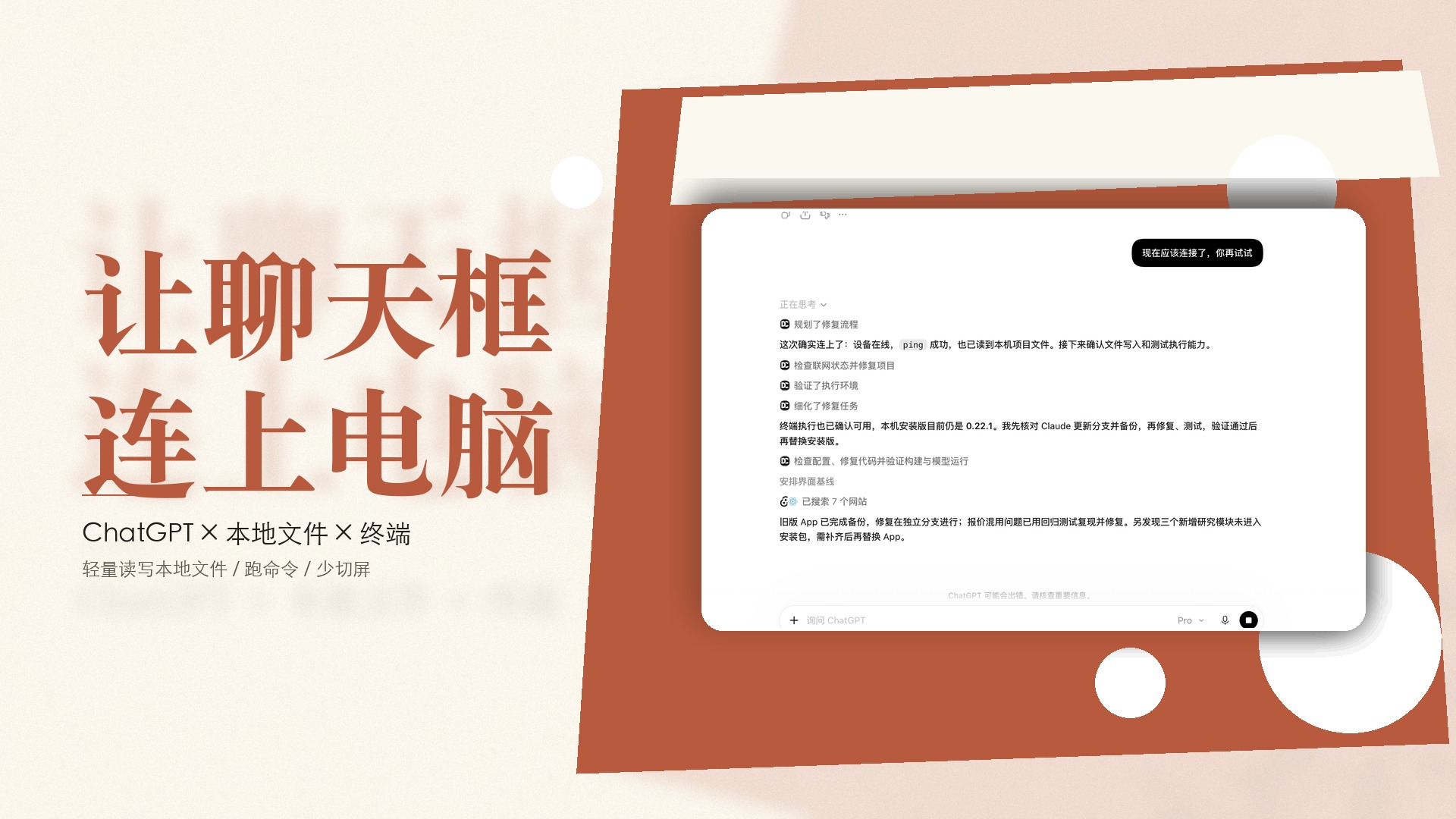
Today I tried the Remote Desktop Commander plugin. It turns the ChatGPT chat box into a lightweight assistant that can touch your local computer.
| Dimension | Traditional ChatGPT Web App | Full Coding Agent, Such as Codex | With Remote Desktop Commander |
|---|---|---|---|
| Read local errors | Copy Terminal output, paste it into chat | Runs the investigation itself, but burns quota fast | Ask it in chat to read the log directly, no copying |
| Read and write local files | Find files manually, select and upload them | Handles project-level edits, at a higher cost | Point to a local path in chat for reading and light edits |
| Maintenance cost | No setup, but the workflow is annoying | Needs a dedicated environment and a bigger budget | Run one command on your computer to pair, disconnect anytime |
| Best for | Pure planning and brainstorming | Large, complex feature work | Everyday debugging, reading logs, checking configs, small file edits |
After connecting it, I sent one line in the chat: “It should be connected now. Try again.”
It replied directly: the device was online, ping succeeded, and it could read local project files smoothly.
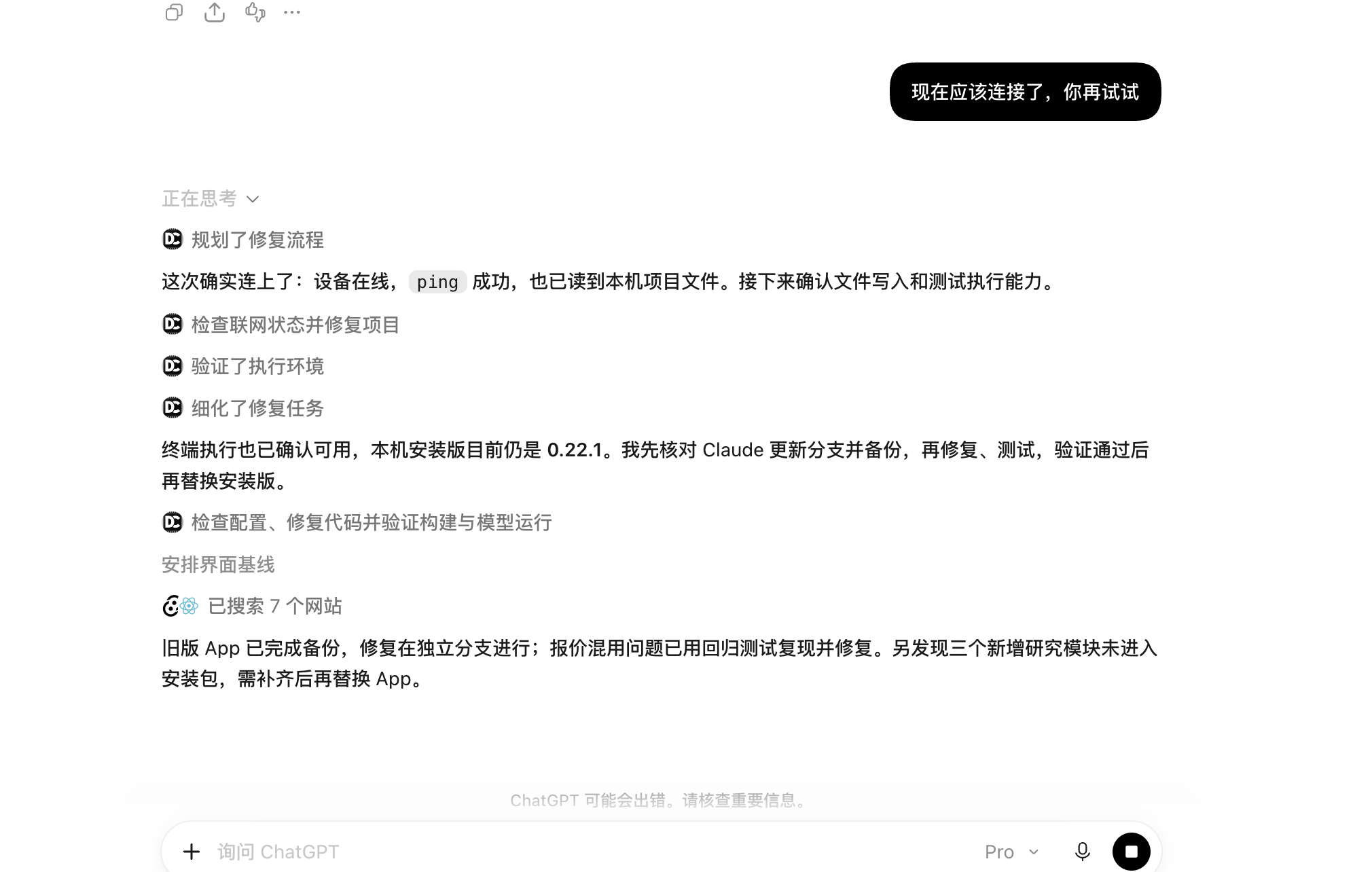
The later automatic edits and environment tests were still running, but the core wall was already gone: the ChatGPT chat box no longer has to stare at your computer from the other side of the screen.
01What It’s Actually Good For
First, be clear about what this is: the plugin does not click around your screen for you. It is a real remote MCP, or Model Context Protocol, pipe.
OpenAI’s official plugin page is explicit about the capabilities: read local files, run terminal commands, and manage background processes. You start a small background agent on your computer, and ChatGPT sends file and command requests through a secure cloud channel back to your local machine.
The most common and smoothest community use cases are the mechanical chores that used to burn human time:
Check project state without manually sending files: let it inspect local Git history and read the latest error log. After a plan is settled, let it create a file in a local test directory and run a verification. Keep these small file, config, and log tasks inside ordinary ChatGPT conversations, and save expensive Codex quota for the genuinely complex development work.
02Get Started in 5 Minutes
You do not need to buy a server or wrestle with complicated API keys. Two steps are enough.
1Start the local agent: make sure Node.js 18 or later is installed. Open Terminal and run the command below. A browser authorization page opens automatically, and Terminal shows a pairing code. If the codes match, click Verify Device. When Terminal says Device ready, you are done. Note: keep this Terminal window open. If you close it, the device goes offline.
2Install the ChatGPT plugin: search for Remote Desktop Commander in the ChatGPT sidebar or app marketplace and add it. Or open the official setup page and install it from there. Authorize with the same account you just paired.
Official setup guide and landing pagehttps://desktopcommander.app/mcp/chatgpt/3Run a safe test: open a new conversation and start with a read-only instruction. If it reports real file names, the channel is fully connected.
Then create a test file in an empty directory, read it back, confirm everything is correct, and only then hand it a real project.
03Pitfalls and Boundaries That Matter
The practical value of treating the ChatGPT chat box as an entry point to your computer is simple: it erases the old mechanical loop of switching windows, pasting code, and relaying logs. You no longer need to hand-build and maintain MCP. When you need it, connect it and try it.