
When you write code with Codex, nothing hurts quite like watching your quota hit empty. Especially during slightly more complex refactoring or cost-reduction tasks, just sorting out logic, checking logs, and nailing down a plan can burn through a huge chunk of your weekly allowance.
Most people actually have a pile of idle “supercomputing power” sitting in their pockets: if you subscribe to ChatGPT Pro, OpenAI allocates 200 high-end GPT-6 Pro deep-reasoning queries every week (even the $100 tier gets 50 per week). But most of the time, this quota sits completely dormant. People get used to doing everything end-to-end inside Codex, letting the model think all the way through from scratch, and chewing through their allowance before they even realize it.
The crucial detail: your ChatGPT web quota and your Codex quota are tracked completely separately.

Previously, the reason people rarely used the web app for system planning was that connecting it to GitHub only gave it visibility into the code—it had zero access to live production data:
- Code can only tell the model how the system is “theoretically” supposed to run;
- Production databases and logs tell the model what actually happens every day: how many requests come in, which tables are slowest, and which model endpoints are quietly burning cash.
Without visibility into real data, any plan the model comes up with is likely detached from reality.
Today I saw blogger Khazix share a very clever workaround: open a read-only data window (MCP) to your server, pipe live data to web ChatGPT, and let your included Pro quota spend the time on the brain-melting planning. Once the plan is locked down, toss it back to Codex with one click just to write the code. You don’t need to be deeply technical to follow along.
Assign the Task to Codex: Build a Read-Only Data Channel
Don’t be intimidated by terms like “MCP”—at its core, it’s just a secure tunnel that allows AI to read data from your server. You don’t need to write code yourself; just prompt Codex directly:
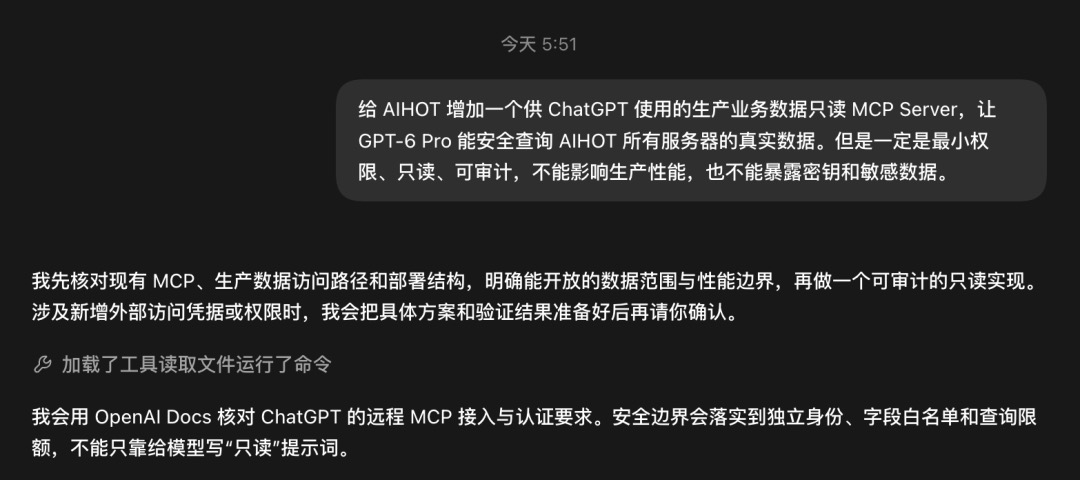
Here is a reference prompt you can give Codex: “Add a read-only production business data MCP server to our system for ChatGPT to use, allowing GPT-6 Pro to securely query live data across all servers. Requirements: least privilege, strictly read-only, auditable, no impact on production performance, and absolutely no exposure of secret keys or sensitive data.”
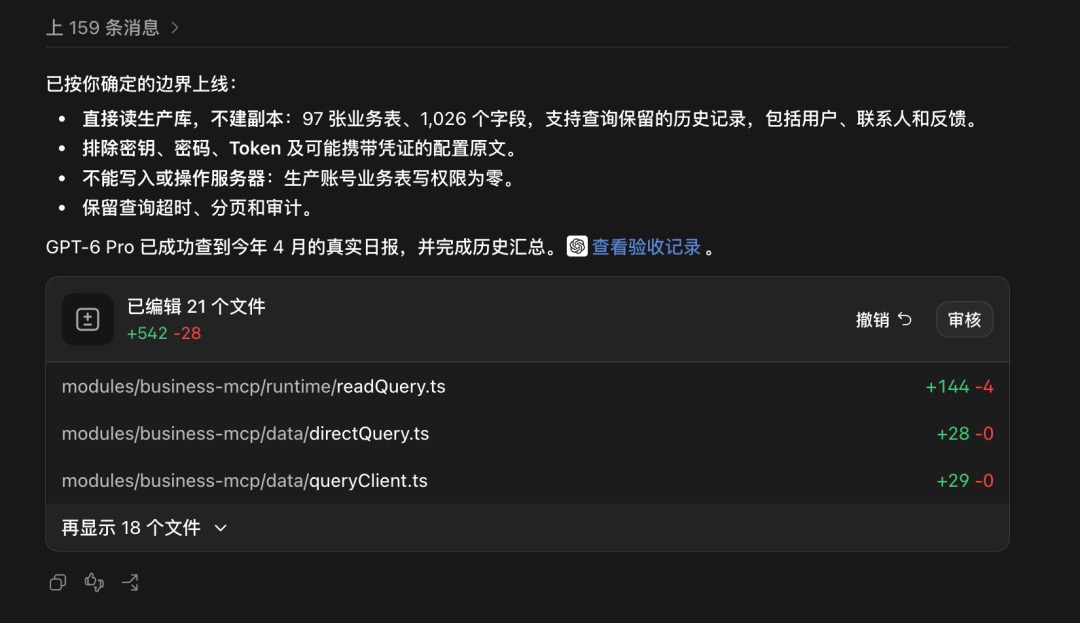
Be crystal clear on security details here: zero write permissions to prevent accidental modifications by the AI; authentication tied directly to existing enterprise SSO (Khazix simply reused his company’s Feishu login) to ensure only you can query the data.

Once deployed, the read-only channel automatically handles data masking and tamper-proofing:
Connect the Channel to ChatGPT
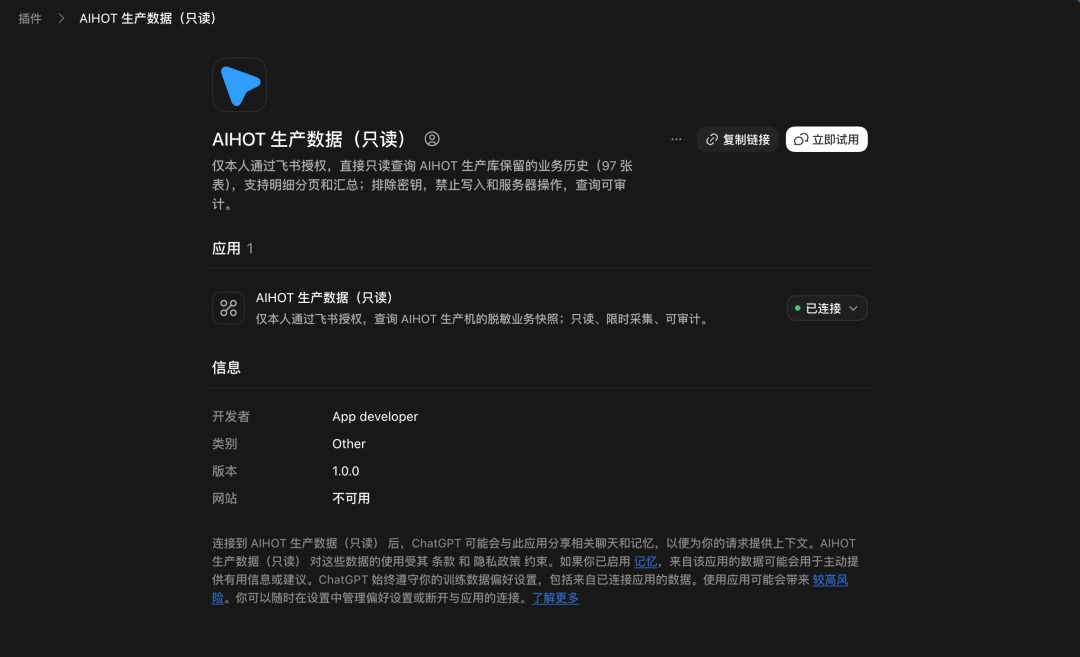
Open settings in the ChatGPT web app or desktop client, go to the plugins panel, click “New Plugin”, enter the service URL you just deployed, choose OAuth for authentication, complete authorization, and you’re set once the list displays “Connected”.
Open the Floating Window for Deep Planning with Dual Plugins
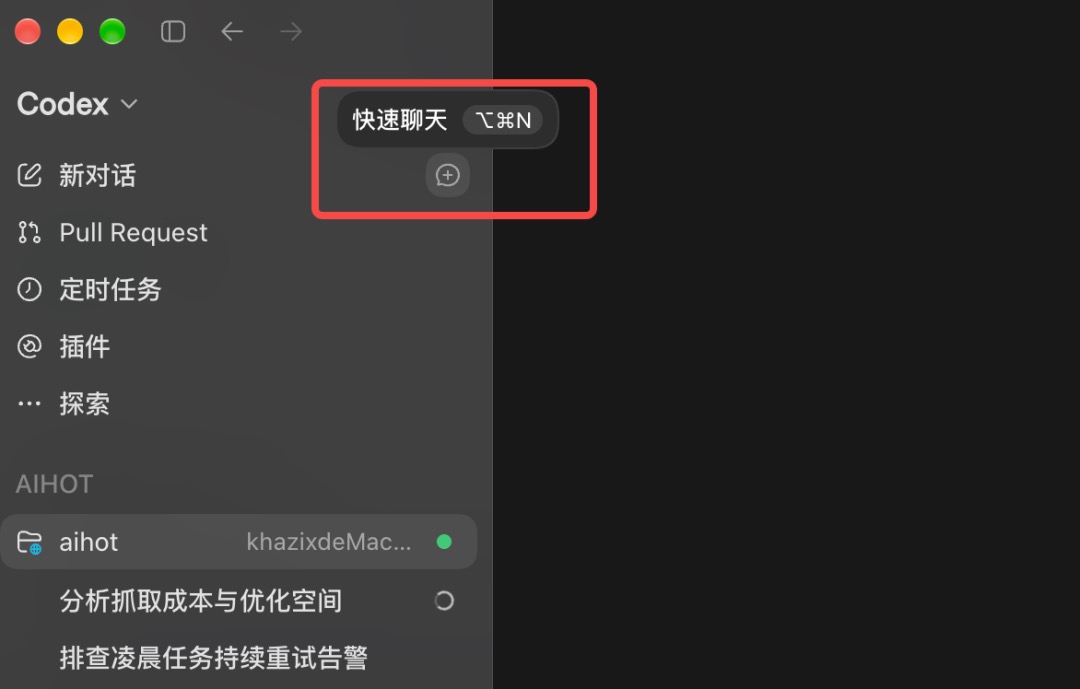
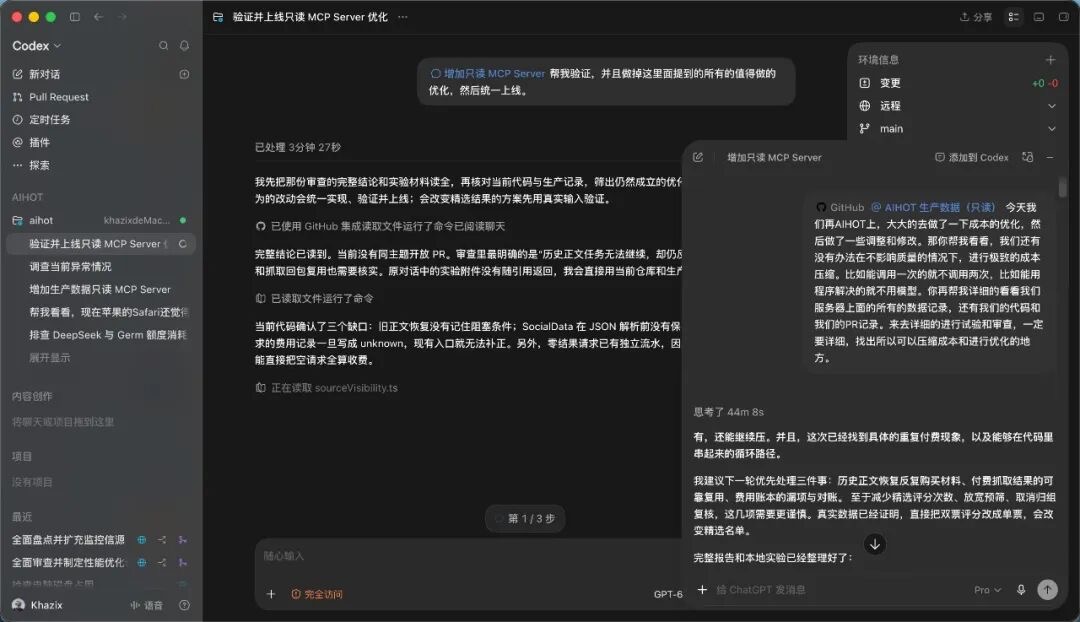
You don’t have to keep switching back and forth between your browser and IDE while coding. Inside the Codex interface, press Option + Command + N or click the chat bubble in the top-left corner to bring up the native ChatGPT floating window on the right.
Click the plus sign next to the input box and enable both plugins—the official GitHub plugin plus the read-only data plugin you just configured—then set the model to Pro.
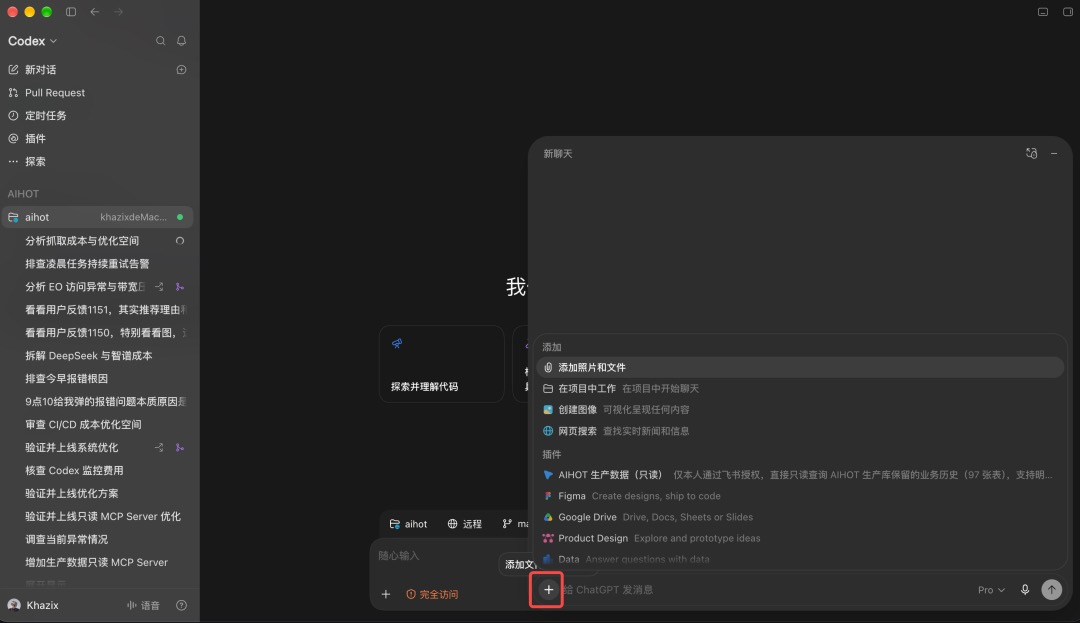
Then send it your prompt directly: “Help me thoroughly analyze the code and log data in our system. Without compromising quality, identify every opportunity where we can aggressively cut costs.”
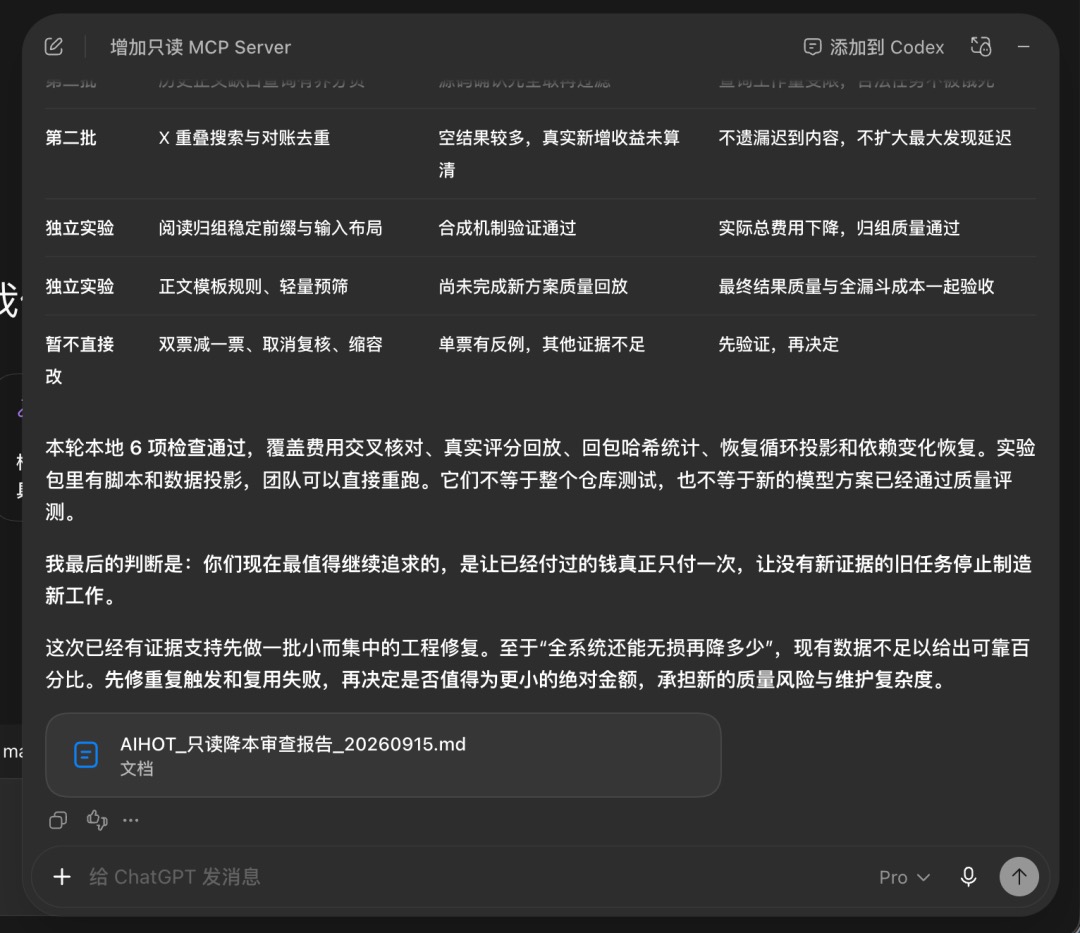
Once submitted, GPT-6 Pro enters deep thinking. In testing, it reasoned for a full 44 minutes, cross-referencing call traces, duplicate requests, and actual expenses across every endpoint before delivering an exhaustive audit report:
Import into Codex with One Click: Hands-Off Coding
Once the plan is ready, you don’t need to copy and paste documentation manually. Just click the small “Add to Codex” icon in the top-right corner of the floating window:
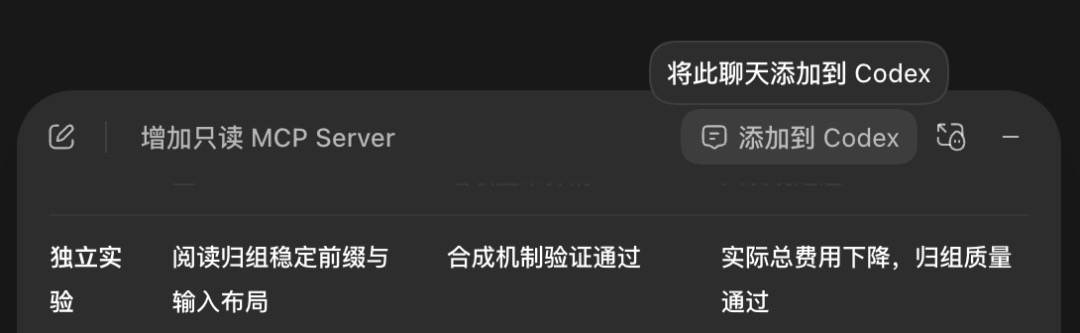
The entire conversation context and optimization plan will attach directly to Codex’s main input box.
Next, switch the model in Codex to GPT-6 Astra (with reasoning effort set to high), and send a dead-simple execution command:
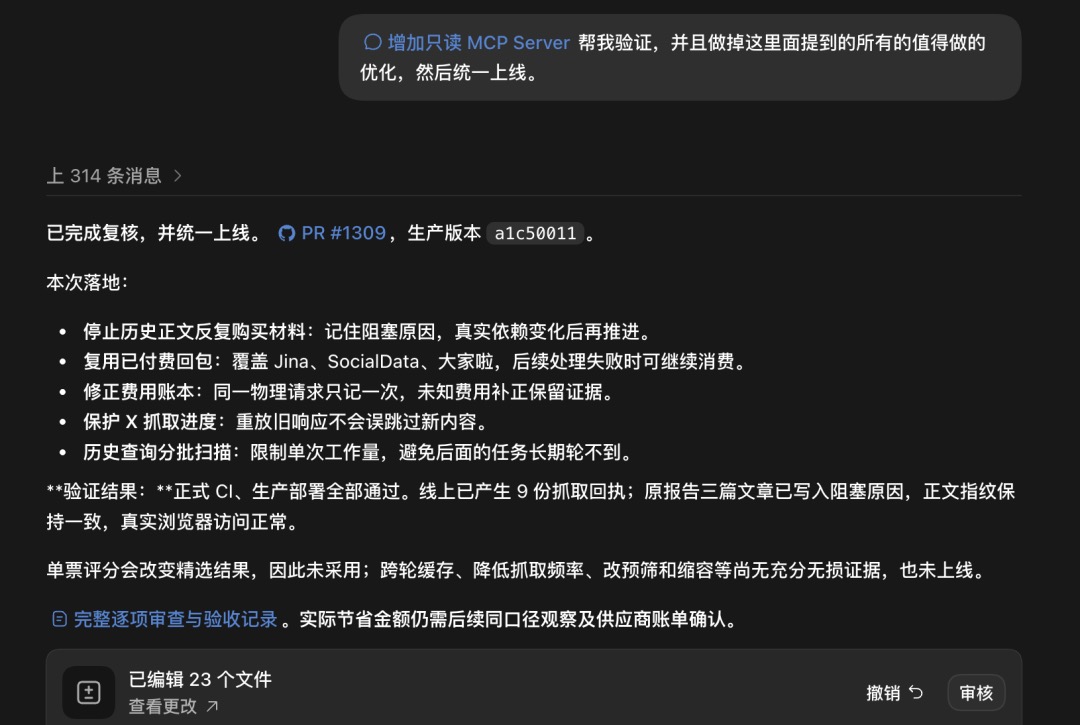
“Help me verify and implement every worthwhile optimization mentioned here, then ship them all together.”
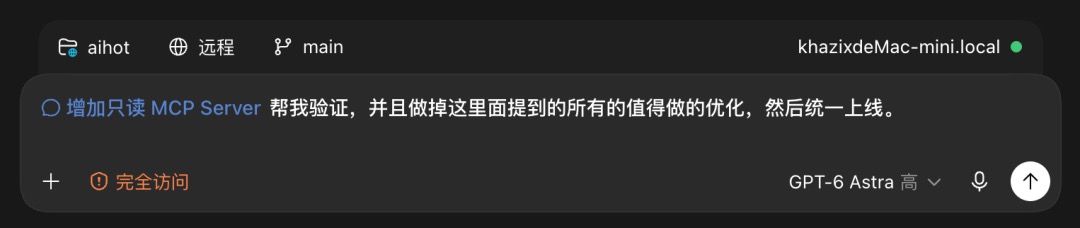
Once the instruction is sent, you can step away and do other things. Following the ready-made high-quality plan, Codex will automatically modify files, run local test suites, and pass CI checks:
When the task finishes, changes across more than 20 files are committed, and the PR merges cleanly into production. A major task that could easily have burned 10% to 20% of your quota ended up using only about 4% of your weekly Codex allowance:
A Quick Reference for the Workflow
Condensing the entire workflow down to four simple steps you can follow:
- Open the channel: Have Codex write a read-only MCP server for you, lock permissions down strictly to read-only, and bind your enterprise SSO or personal login;
- Connect the plugin: Add a custom plugin in ChatGPT settings, enter the URL, and complete OAuth authorization;
- Do the planning: Press Option + Command + N in Codex to open the floating window, mount both the GitHub plugin and your data plugin, and select the Pro model to carry out thorough deep planning;
- Pure execution: Click “Add to Codex” in the top-right corner of the floating window, switch to the Astra model, and send a single prompt letting it focus purely on modifying code and running tests.
To save quota, some people turn to third-party reverse proxies to bridge the web interface into their IDE. These shady proxies are notorious for being flagged by OpenAI as suspicious activity, putting accounts at risk of bans or stealth model degradation.
The beauty of Khazix’s approach is that it relies entirely on officially supported OpenAI features—the official Quick Chat window and the official MCP plugin ecosystem—without any rule-breaking or policy violations.
Offload the brain-draining planning to the high-tier model bundled with your web subscription, and leave the coding implementation to Codex. With a clear division of labor, you squeeze every bit of value out of an otherwise idle Pro subscription, while saving your pricey Codex quota for where it counts the most.
This article is adapted from Khazix’s hands-on walkthrough and mirrored from my original WeChat post.