Ever been fed up with phone automation? The moment the AI starts, your screen jumps around as if it’s haunted.
While it runs, you can’t switch apps, take an urgent call, or even tap the screen without crashing the script. Your phone becomes a powered brick, and all you can do is stare at it until the task finishes.
The disconnect between devices is even more frustrating. Claude Code makes coding and organizing industry research on a computer incredibly efficient. But the moment a workflow reaches WeChat groups or content platforms on your phone, the whole automation pipeline hits a bottleneck —
First you scroll back through chat history on your phone, take screenshots or copy chunks of text, and send them to your computer. Once the model on the computer has organized the copy, you pick up your phone again, open the file transfer assistant, copy each piece, and switch to the target app to format it, post to groups, and reply to messages. You think AI is empowering you. In reality, you’re just the most exhausted, cheapest human adapter between two devices.
The open-source Android tool I’ve been testing extensively lately — Mika — tackles that problem directly. I connected it to Claude Code on my computer with ADB debugging. My biggest takeaway comes down to one sentence: Phone automation finally doesn’t have to hijack my screen.
If you do something 3 times, hand it over to AI.
But real automation should never mean taking away the screen in your hand.
01An Independent Virtual Display: Productivity Without Taking Over the Screen
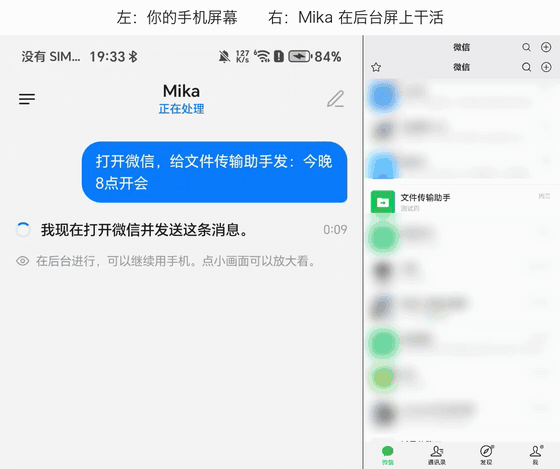
There are plenty of phone automation tools. But Mika’s killer feature — the one that puts it in a different league — is its built-in independent background window (Virtual Display).
Older tools are so frustrating because they take over the physical foreground screen. They have to bring WeChat to the front and simulate finger taps. Mika takes a clever approach at the Android system level: it mounts a separate virtual secondary display inside the system.
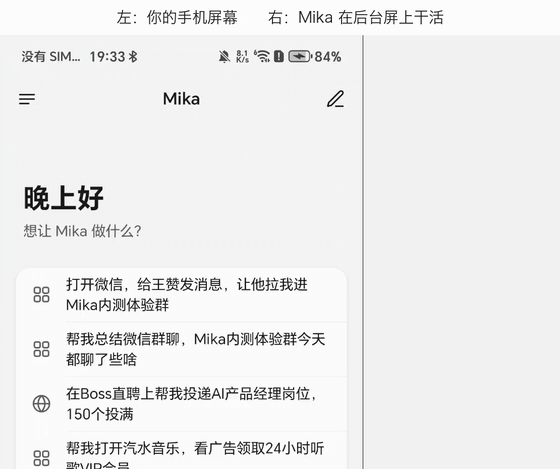
It’s like adding an invisible desktop to your phone. WeChat and content apps run on that invisible secondary display, where the AI reads the interface, finds buttons, scrolls through history, types, and sends messages. None of those operations are visible on the physical screen you’re holding.

Picture this: you’re browsing Xiaohongshu and replying to friends on the main screen, while the AI on the background display has already read hundreds of WeChat group messages and produced meeting notes. Each side does its own work without fighting for focus or getting in the other’s way. The experience is excellent.
One recommendation from my testing: I strongly recommend a device running Android 14 or later. Starting with Android 14, the background virtual display has fully independent input focus, so typing there won’t occasionally interrupt the keyboard on your main screen. For sensitive operations such as facial verification at login or entering a transaction password, Mika doesn’t tap blindly. It sends a notification and switches back to the main screen, waits for you to finish, then returns to the background automatically.
02In Practice: One Spare Android Phone for Content and Community Operations
My rule at work has always been simple: If something repeats more than 3 times, find a way to automate it.
My most reliable setup now is a spare Android phone plugged into power and connected to my home Wi-Fi, with Mika installed as my fully automated, round-the-clock operations assistant. It quietly handles three core scenarios in the background every day:
Scenario One · Automated Morning and Evening Briefings: Collection, Editing, and Scheduled Posting At fixed times each morning and evening, such as 08:45 and 20:45, an aggregation module on the computer collects the latest updates and high-value information from across the web, stripping out marketing fluff and heavy AI-sounding prose. The finished copy goes straight to the spare phone. Mika quietly opens WeChat on its background virtual display, finds the designated XXX discussion group, formats the content, and sends it — without a single extra manual tap.
Scenario Two · Autonomous Follow-Up During the 10-Minute Interaction Window After Posting A common problem with community groups is that conversation dies as soon as content is posted. Mika doesn’t leave immediately after sending a briefing. It watches the group in the background for another 10 minutes. When someone quotes the briefing to discuss it or ask a question, it extracts the context and generates a short, professional reply, always ending with an [AI] label. After 10 minutes, it summarizes the group’s feedback and feeds it into the knowledge base to guide content selection for the next edition.
Scenario Three · Hourly Checks and Automatic Information Consolidation Every hour, it reviews important group chats and sorts and triages key information. When something unexpected genuinely needs a human decision, it summarizes the issue and sends a notification to my main phone.
This whole pipeline saves me 2 to 3 hours a day of miserable, mechanical copying and pasting between devices and apps. If you manage multiple content accounts or private communities, that is a lifesaving way to free up your hands.
03Open by Design: Choose Your Model and Dispatch Tasks Across Devices
A common trick among commercial phone assistants is to tie the model to their own paid servers. They’re slow to respond, and they charge expensive monthly membership fees on top.
Mika, by contrast, is an open-source, open local agent runtime:
First, you have full control over the model. It natively supports any API compatible with the standard OpenAI format. Whether you prefer cost-effective DeepSeek, Qwen, or Kimi, top-tier Claude or GPT-4o, or even a private Ollama deployment on your local network, just enter the Base URL and Key to use it.
Second, it natively supports MCP (Model Context Protocol). Mika doesn’t just simulate taps. It also has a built-in MCP client. That means you can connect a local knowledge base or web search tools to the phone, allowing the phone-side AI to look up information before making a decision when it encounters something uncertain on screen.
Third, computer-side AI can dispatch tasks seamlessly. If you use Claude Code, Cursor, or your own automation scripts, install Mika’s official Skill or CLI. Your computer can then send tasks directly to the phone with mika task run. If requirements change mid-task, use task steer to inject a new instruction into the running task and adjust its course, without stopping everything and starting over.
04Hands-On Setup: Get the Automation System Running in 4 Steps
Don’t let “command line” or “ADB” put you off. With an Android phone and a data cable, you can follow these steps and finish in 10 minutes:
- Download and install the phone APK. Get the latest installation package directly from Mika’s official GitHub Releases. For everyday use, I strongly recommend a spare phone running Android 14+.
- Enter the Key for your preferred model. Open Settings > Models in Mika, choose a provider you’re comfortable with, and enter its API Key, such as one for DeepSeek or GPT-4o. The key is stored in the phone’s local sandbox. Don’t casually put it into public prompts.
- Pair the phone-control permissions — the key step. In the phone’s Developer options, enable USB debugging and Wireless debugging. Tap Mika’s phone-control setup wizard and follow the on-screen instructions to pair once. Once paired, Mika automatically enables the accessibility service, bypassing the deeply frustrating “Restricted settings” popup on Chinese Android systems. Remember to exempt Mika from battery restrictions and turn off the system’s sleep and hibernation optimizations.
- Connect through ADB on your computer. Connect the phone with a data cable and allow debugging from your computer. Install Mika’s Skill for your computer agent, or install the CLI globally. Enter these three commands in the terminal:
adb devices
mika connect --device <设备序列号>
mika doctor --device <设备序列号>
Once mika doctor shows all green checks, the underlying communication between your computer and phone is fully connected. To see a visual control panel in your browser, type mika ui in the computer’s terminal to open the local console.
Two Safety Boundaries You Must Keep in MindFirst, Mika’s default “ask mode” only pauses for your approval when real money is involved, such as payments and placing orders. Sending messages, submitting forms, and deleting content all run straight through. Second, when Mika reads screens and chat history, it sends the images and text to the model you configured. Don’t casually send confidential company information or highly private personal conversations to an external model for scanning.
05Ready to Use: A General-Purpose Agent System Prompt
To save you the trouble of tuning things yourself, I’ve packaged the control rules I run reliably in Claude Code, Cursor, and other automation agents into a general-purpose system prompt.
Whatever desktop AI tool you use, copy the following into your agent preset, and it will immediately understand the standard way to control your Android phone:
# Role: Mika Mobile Agent Controller (米卡安卓自动化控制器)

## 角色定位
你是一个通过电脑终端管理并控制安卓设备上「米卡 Mika (com.wangzan101.mika)」应用的智能调度助手。你的任务是将用户的自然语言目标转化为对米卡 Task API 的精准调度,并在任务执行期间自主跟踪进度、回传结果。

## 前置环境与连接规则
1. 本机已安装有 adb 命令行工具及 Python 3.10+。
2. 调度命令:若系统已全局安装 mika 则直接调用;否则使用 python3 <skill-dir>/scripts/mika_cli.py。
3. 连接模式:USB/ADB 执行 mika connect --device <SERIAL> --json;Wi-Fi 模式传入 --url 与 --token-file。提交任务前必须确保 mika doctor 检查通过。

## 核心任务调度工作流
1. 提交目标 (task run):
   - 命令:mika task run --goal "<具体目标描述>" --json
   - 记录返回的 task_id 与 conversation_id。
2. 状态监听 (task wait & status):
   - 调用 mika task wait <TASK_ID> --timeout 45 --json 进行前台等待,禁止编写无限轮询死循环。
   - 检查状态:running 继续等待;waiting_for_answer 向用户请示后调用 task answer;waiting_on_phone 提示用户人工接管;done 汇报结果;failed 报告确切原因。
3. 动态纠偏 (task steer):
   - 任务运行中途若有补充要求,使用 mika task steer <TASK_ID> --text "<补充说明>" 注入当前上下文。

## 核心原则
- 保护前台体验:Mika 使用独立后台虚拟窗口,绝不进行不必要的强行前台切换打扰用户。
- 敏感操作授权:未经用户明确要求,严禁自主执行支付、大额转账、清空数据等高危破坏性操作。
- 绝不泄露凭据:严禁在交互对话与日志中打印 Token 明文与密码。
- 真实反馈:所有状态以手机返回的真实 JSON 为准,绝不脑补虚假完成结果。
Once configured, just tell your computer naturally: “*Open WeChat on my spare phone and summarize today’s hot discussions in the XXX discussion group in 200 Chinese characters*.” The computer-side AI will use Mika to direct the phone and complete the whole workflow automatically.
06A Breakthrough for the Apple Ecosystem: Where Does Pinky Fit?
The spare Android phone setup is satisfying, but friends who rely heavily on iPhones keep asking: does the Apple ecosystem have to sit this one out?
Another major development has recently made the rounds: **Pinky**, a similar phone AI automation tool, has officially released an update with exclusive support for iPhone devices.
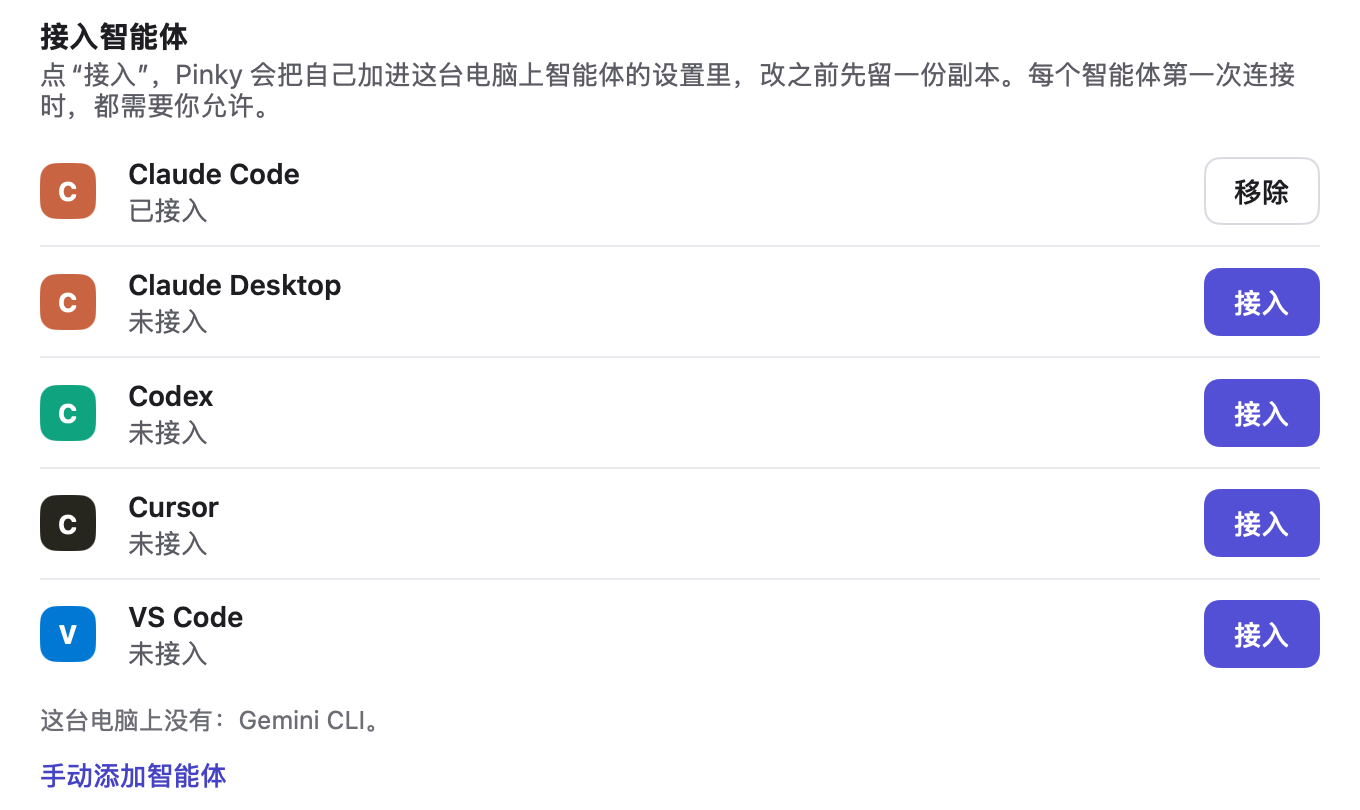
Pinky takes a pure MCP approach and connects smoothly to desktop tools such as Claude Code and Codex. But the two tools work in fundamentally different ways:
Mika’s core advantage on Android is its independent virtual background display — you keep browsing while it works. By contrast, Pinky operates the main screen when connected to an iPhone, which means running tasks on an Apple device still requires handing over control of the screen.
Whatever the trade-offs, Pinky breaks the deadlock that previously made deep automation on iOS nearly impossible. I now have both an Android phone and an iOS phone set up for testing on my desk. Next, I’ll publish an in-depth “Mika vs. Pinky” comparison, testing task success rates, resistance to interference, everyday usefulness, and more.
If you want to see how the two tools really perform at their limits, stay tuned. See you in the next in-depth test.